
Output formats and names
The process system is new and only in the early access version of Human Generator. It replaces the process tab of version 4.0, which is deprecated. Details can still change; if something doesn't work or looks wrong, let us know.
The Output dropdown at the top of the Process tab decides what you get: a character file for a game engine, a plain mesh file, or a processed copy that stays in your Blender scene. The box at the bottom holds the name, the folder and the format options.
Output formats
| Output | What you get | Use it for |
|---|---|---|
| In this file | A frozen, processed copy of the human in your scene, see Processed copies | A lightweight copy to render, a crowd of baked humans, or checking a result before exporting |
| FBX | One .fbx file with the skeleton, meshes and blend shapes | Unity, Unreal Engine, Mixamo and most other 3D programs |
| glTF Binary (.glb) | One .glb file with the textures inside | Godot, glTF viewers and the web, Blender |
| glTF + textures | A .gltf file with the textures as separate files next to it | The same, when you want to edit the textures |
| OBJ (no rig) | Meshes only. No skeleton, animation or blend shapes | Static props, 3D printing, programs that only read OBJ |
| Alembic (no rig) | A mesh cache. No skeleton | VFX pipelines |
The sections adjust to the format: a file always needs baked textures.
Name
The name of the file, and the prefix of every object, material and texture inside it. {name} stands for the name of the human, so the default {name} exports Jake as Jake.fbx with meshes like Jake_Body and textures like Jake_Skin_BaseColor. Change it to Hero_{name} and you get Hero_Jake.fbx and Hero_Jake_Body. Spaces and odd characters become underscores.
Folder
Where the files go. Leave it empty for the export_results folder inside your Human Generator content folder (the folder from the add-on preferences). The grey line under the field always shows the folder that will be used. Paths starting with // are relative to your Blender file. The folder is created if it doesn't exist.
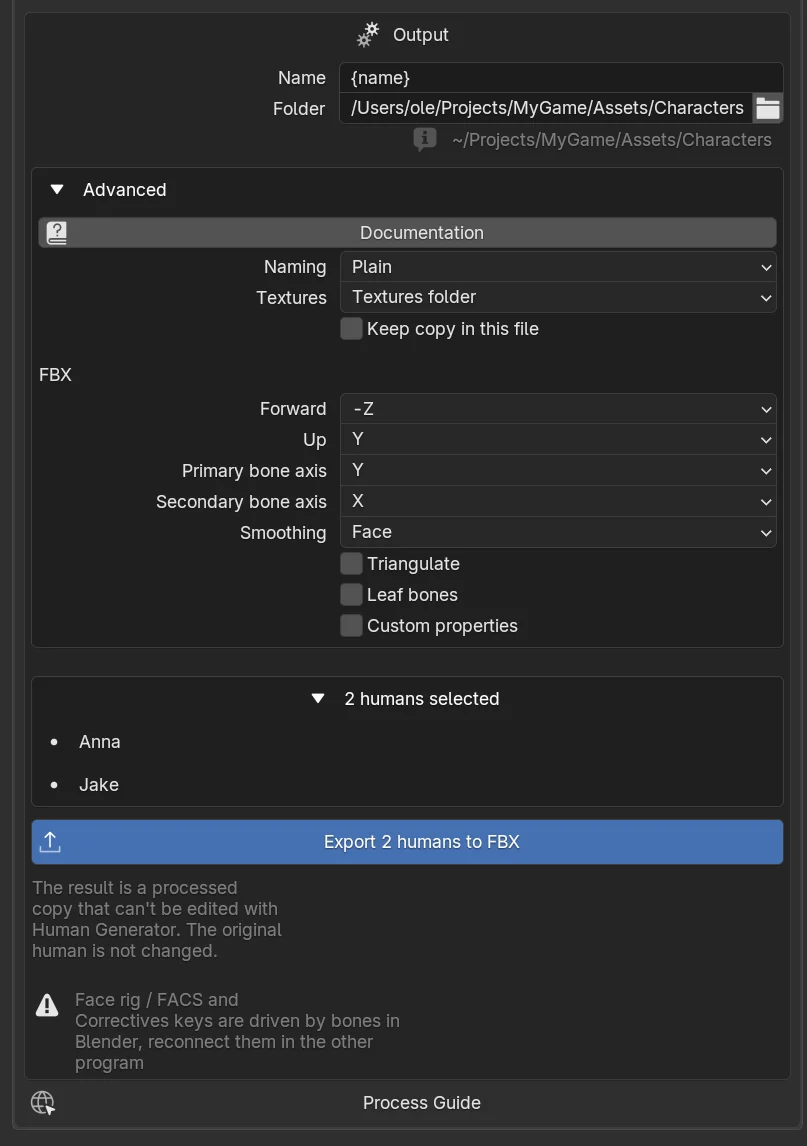
Point the folder at a folder inside your Unity Assets, your Godot project or next to your Unreal content, and the engine picks the files up as soon as they are written.
Advanced
Naming
How every object, mesh, material and texture in the file is named. Engines show these names, so a clean scheme saves renaming later.
| Scheme | Rig | Meshes | Materials | Textures |
|---|---|---|---|---|
| Plain | Jake | Jake_Body, Jake_Eyes, Jake_Haircap, Jake_HairCards, Jake_Jeans | Jake_Skin, Jake_Teeth, Jake_Haircap | Jake_Skin_BaseColor, Jake_Skin_Normal, Jake_Skin_ORM |
| Unreal prefixes | SK_Jake | SK_Jake_Body | M_Jake_Skin | T_Jake_Skin_BC, T_Jake_Skin_N, T_Jake_Skin_ORM |
| Custom | Your own templates with the {name}, {part} and {pass} tokens |
With more than one LOD level the meshes get a _LOD0, _LOD1, … suffix, as the engines expect.
Textures
Where the baked textures end up:
- Textures folder (default): in a
Texturesfolder next to the file. - Next to file: in the same folder as the file.
- Embedded: inside the FBX or glb file, so you only hand over one file. glTF + textures always writes them next to the file.
Keep copy in this file
After the file is written, the processed copy normally disappears from your scene. Turn this on to keep it, for example to check the result in Blender or to render with the baked materials. The copy behaves like an In this file result, see below.
FBX options
The recipes set these for the engine, you rarely need to touch them. Forward and Up are the axes of the file (-Z forward, Y up is what Unity and Unreal read correctly). Primary and secondary bone axis orient the bones. Smoothing writes smoothing groups per face, per edge, or normals only. Triangulate writes triangles instead of quads. Leaf bones adds an extra bone at the end of every chain, which engines show as extra bones, so it is off. Custom properties also writes the custom properties of the objects.
glTF options
Images writes PNG, or JPEG where no alpha channel is needed (Auto), or always JPEG for smaller files. Tangents writes the tangents into the file instead of letting the engine compute them. Draco compression makes the geometry much smaller; the textures stay as they are; the program that reads it needs to support Draco.
What is in the file
The skeleton, the body, the eyes, the teeth, the clothing and footwear, and the hair cards when Haircards is on. Particle hair is never exported, no file format can carry it. The processed copy is placed at the world origin before it is written, so the character stands at 0, 0, 0 and without rotation in the engine regardless of where it is in your scene.
The .humgen3d.json file
Next to every character file with a skeleton (FBX and glTF), Human Generator writes a small file with the same name: Jake.fbx gets Jake.humgen3d.json. It lists the files of the character, what every mesh and material is (skin, eyes, teeth, haircap, hair cards, clothing), which texture file is which map, the material inputs that are a plain value instead of a map (the roughness of the eyes, the specular of the skin), and the settings the character was made with.
The Companions for Unity, Unreal Engine and Godot read it to set the character up, and only touch characters that have one. Keep it next to the character file when you copy the export into your project; the engine imports it as a plain data file. To export another character the same way, load it like a recipe: ExportSettings.from_recipe("/path/to/Jake.humgen3d.json").
Reading it from your own tools
The format is described in human/process/manifest.py inside the add-on. The number in humgen3d_export only goes up when a change would make older readers misread it.
Licence of exported characters
Exported characters fall under the Human Generator Asset License. With the commercial licence you can ship them in commercial games and software, as long as players can't take the character out and reuse it. The personal licence covers personal, educational and portfolio work, not commercial games. With either licence, don't share or sell the exported files themselves (the FBX, glTF or texture files), also not modified. glTF files carry a line about this licence in their copyright field. The License FAQ answers the common questions.
Processed copies
A processed copy is what In this file gives you, and what Keep copy in this file leaves behind. It stands two meters behind the original, in a collection called Processing Results, and it is frozen: a finished character rather than an editable human.
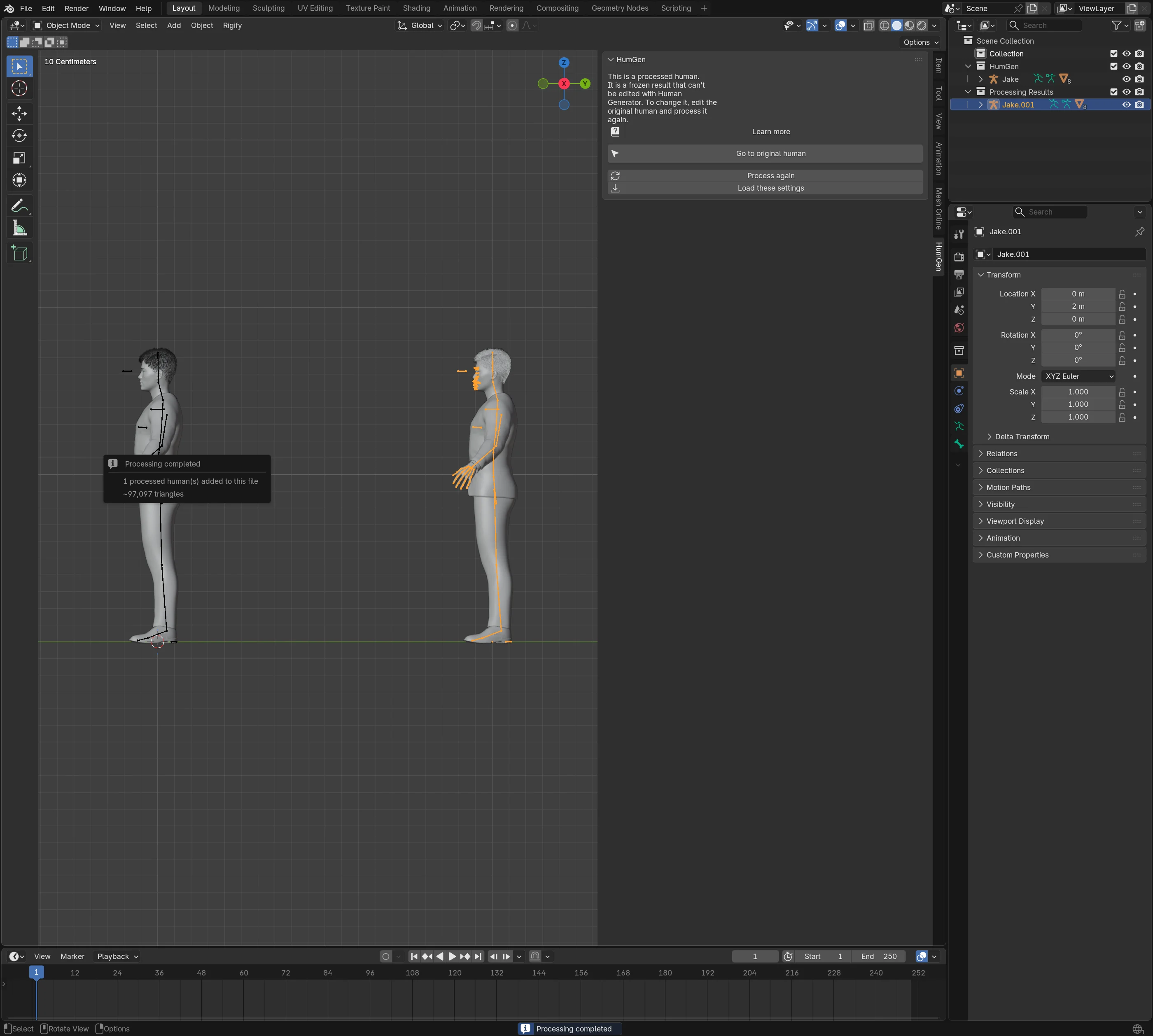
Select it and the Human Generator panel shows:
- Go to original human: selects the human it was made from, so you can keep editing there.
- Process again: processes the original once more with the exact settings this copy was made with. The way to update a copy after you changed the original.
- Load these settings: puts the settings of this copy into the Process tab, to export the same way or to make a variation.
You can rename, move, animate, render and delete a processed copy like any other object. The settings it was made with are stored on its rig, so they travel with it when you append it into another file.
Or did you expect to keep editing it with the Human Generator panel? Either answer helps. Tell us.
Output and processed copies from Python
settings.output.format = "glb"        # "in_file", "fbx", "glb", "gltf", "obj", "abc"
settings.output.name = "Hero_{name}"
settings.output.folder = "//export"   # relative to the blend file
settings.output.naming = "unreal"
settings.output.textures = "embedded"
settings.output.keep_copy = True   # otherwise the copy is removed after the export
result = human.process.run(settings)
result.files      # the written files
result.humans     # the processed copies left in the file

copy = result.humans[0]
copy.process.is_processed   # True
copy.process.settings       # the ExportSettings it was made with
See OutputSettings, ExportResult and ProcessSettings. To write a human to a file without the rest of the process, see ExportBuilder (human.export.write).
Frequently asked questions
Which file formats can Human Generator export?
FBX, glTF (binary .glb or .gltf with separate textures), OBJ and Alembic, plus a processed copy inside the Blender file. FBX and glTF carry the skeleton and blend shapes; OBJ and Alembic are meshes only.
Can I export one file with the textures inside?
Yes. Set Textures to Embedded under Advanced for FBX, or use the glTF Binary output, which always holds the textures. Only the flow map of the hair is written next to the file, as no material input reads it.