
Batch
Quickstart:
What is the batch generator?
The batch generator is a tool to make multiple humans at once. The main advantages of making humans with the batch generator are:
- It is much faster than manually making humans.
- You can change the quality from extremely optimized, to the same quality as normal humans
- By default, batch humans are optimized for having large amounts of humans in the same scene.
How to add markers?
The Human Generator batch generator works with so called markers. These markers are stick figure objects which determine the location, rotation and pose of your batch humans. Add them from the Add Object menu (Shift+A), in the Human Generator Markers tab.
How to generate humans on the markers?
You can choose one of three settings:
- All Markers: A new human will be created for every marker in your scene.
- Selected Markers: Only the currently selected markers will get a new human.
- Empty Markers: Only the markers that don't already had a human generated for them will get a new human.
Video has been sped up for clarity.
Configuring humans before generating:
You can also select different options for the humans, like adding clothing and hairstyles. Video has been sped up for clarity.
The progress bar:
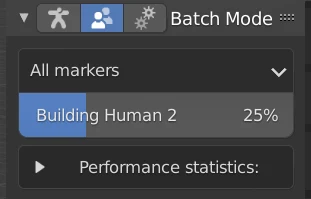
The batch generator has a progress bar to see how much longer it will take. Unfortunately however, this bar will not always show up. We are not yet sure if this is a bug in Human Generator or a limitation of how Blender add-ons can work in the background.
Configuring the generator:
Generation settings:
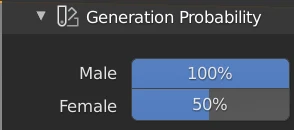
- Generation Probability: This menu allows you to select the percentage chance of both gender and ethnicity. For example, if you want 50/50 men and women, both sliders stay at 100%. If you want 66/33 men and women, you set the sliders like this:
- Height variation: This menu allows you to configure what kind of heights/lengths the humans can have. By default it's setup with an average male height of 175cm and an average female height of 170cm. The
Standard deviationslider configures how far the values can be from this average. Unfold the examples box to see examples of what can be generated. - Hair: By checking the checkbox, a hairstyle will be added to all generated humans.
- Inside this menu, you can select either
particle hairorhaircads(coming soon). - The quality setting will influence the amount of hairs, their thickness and the smoothness. This setting makes a large performance impact, especially between
highandmedium
- Inside this menu, you can select either
- Clothing: Checking this option will add an outfit and footwear to all your generated humans.
- Inside, you can select which libraries will be considered when a random outfit is chosen. This box shows all possible categories, and how many outfits for each gender are inside them. The colors of the clothing will be automatically randomized.
- Expression: Selecting this will add a random expression to each generated human.
- Just like with the clothing menu, you can select which expression libraries the randomizer will choose from.
Exporting batch humans
The batch generator makes humans in your scene; it doesn't export them. To export them for a game engine, select them all and use the Process tab: every selected human is processed with the same recipe and gets its own files. To do it from a script, see Python API › Several humans.