
Export humans to game engines
The process system is new and only in the early access version of Human Generator. It replaces the process tab of version 4.0, which is deprecated. Details can still change; if something doesn't work or looks wrong, let us know.
The Process tab turns a Human Generator human into a game-ready character file: an FBX or glTF with baked textures, hair cards, a clean skeleton with the bone names Unity, Unreal Engine, Godot or Mixamo expect, and the face as blend shapes. It can also make a frozen, lightweight copy of the human inside your Blender file, for rendering crowds. You pick a recipe for the program you use, check the folder and press one button. Everything else, like baking the materials, converting the particle hair to cards and building the skeleton, happens in Blender.
HG Export pack missing?
The recipes and engine data the Process tab runs on come as a separate content pack, HG_Export.hgpack, which is included with your license. Until it is installed, the tab is greyed out and says HG_Export.hgpack missing. Getting it takes two steps:
- Download
HG_Export.hgpackfrom your Superhive account: log in, go to Orders and find it in the downloads of your Human Generator order. The Download from Superhive button in the Process tab opens that page. Superhive is the new name of BlenderMarket; if you bought Human Generator there, log in with the same account. - Install it: press Install HG_Export.hgpack in the Process tab and pick the file you downloaded.
That's a one-time step. The pack is also listed, and can be removed, under Content Packs in the add-on preferences, like the other packs. When an update of Human Generator needs a newer pack, the tab says HG_Export.hgpack outdated; download and install it again the same way.
Quickstart
- Select your human (click any part of it) and open the Process tab at the top of the Human Generator panel.
- Choose a Recipe: Unity, Unreal, Godot, Mixamo, Generic game or Blender render copy. The recipe fills in every option below it.
- Set the Folder at the bottom, for example a folder inside your game project. When left empty, the files go to the
export_resultsfolder inside your Human Generator content folder. - Press Export to FBX (the button is named after the output you chose). A progress bar appears in Blender's status bar; press
Escto cancel.
- When it's done, a popup tells how many files were written, where, and the triangle count. Open folder takes you there.
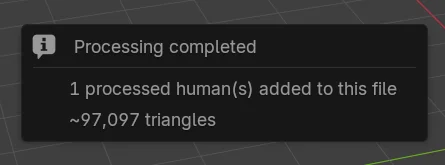
That is all most people need. The engine pages below list the few things to set on the other side, and the section pages explain the options when you want to change something.
Processing works on a copy; the human you select is not changed. The result is a processed copy: a file on disk, or a copy in your scene that you can delete at any time. Keep editing the original, and process it again whenever you like.
Processing a human from Python
The whole Process tab is one call. Load a recipe, change what you want, and run it:
from HumGen3D import ExportSettings, Human

human = Human.from_existing(bpy.context.object)
settings = ExportSettings.from_recipe("unity")
settings.output.folder = "/path/to/MyGame/Assets/Characters"
result = human.process.run(settings)
print(result.files)
See Processing humans from Python for the full tour, and ProcessSettings and ExportSettings for the reference.
Guides per program
SK_, M_, T_ prefixes. The Unreal Engine Companion builds the materials..glb with the humanoid skeleton, blend shapes and textures inside. The Godot Companion adds the hair shader and bone map.The Process tab
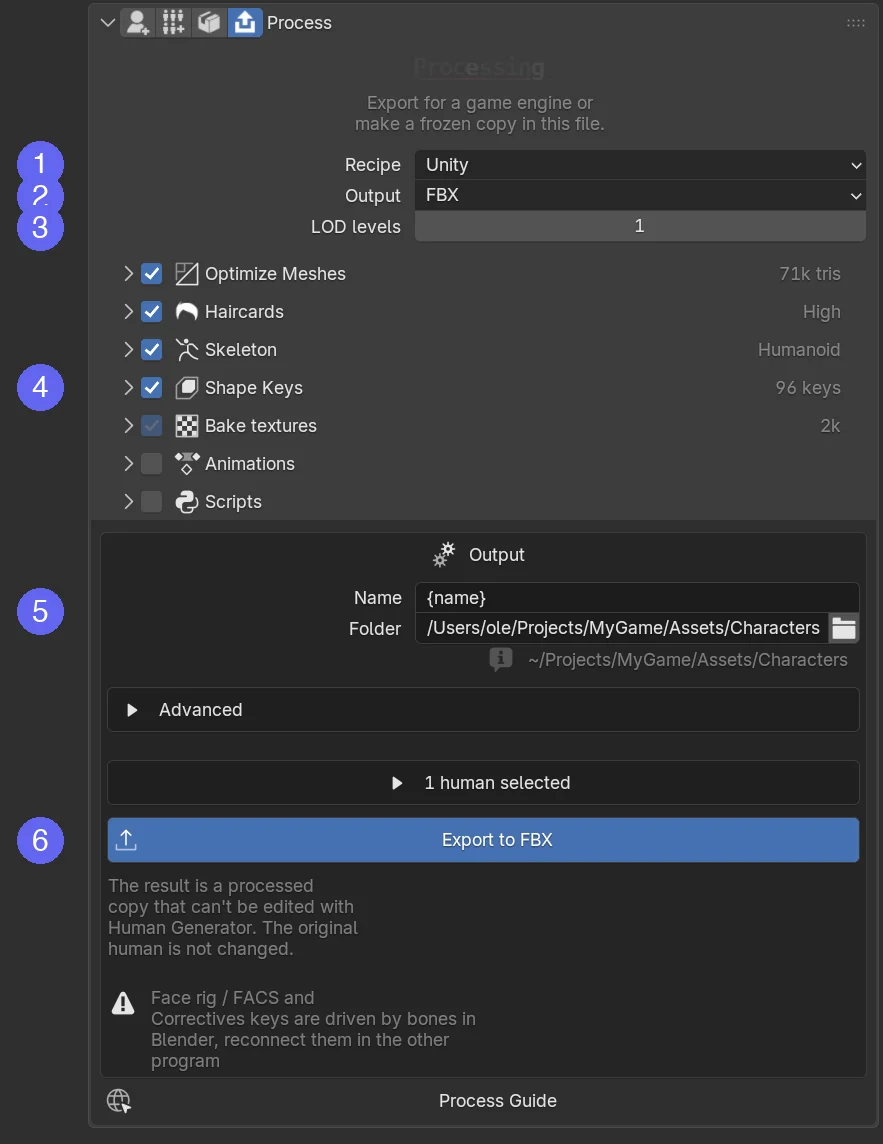
- Recipe. The saved state of the whole tab, tuned for one program. Changing any option below marks the recipe as (modified); the two icons next to it reset the changes or save them as a recipe of your own. See Recipes.
- Output. What you get: a file format, or In this file for a processed copy in your scene. See Output.
- LOD levels. How many levels of detail to make, 1 to 4. Each level is a complete, smaller copy of the character. See Optimize Meshes.
- Sections. Each section is one step of the process. The checkbox in its header turns the step on or off, the grey text on the right summarizes what it is set to. Open a section to change its options.
- Name and Folder. The name of the files and the prefix of every object, material and texture (
{name}is the name of the human), and where the files go. See Output. - Process button. Processes every selected human. Above it you see how many humans are selected, below it the checks that found something.
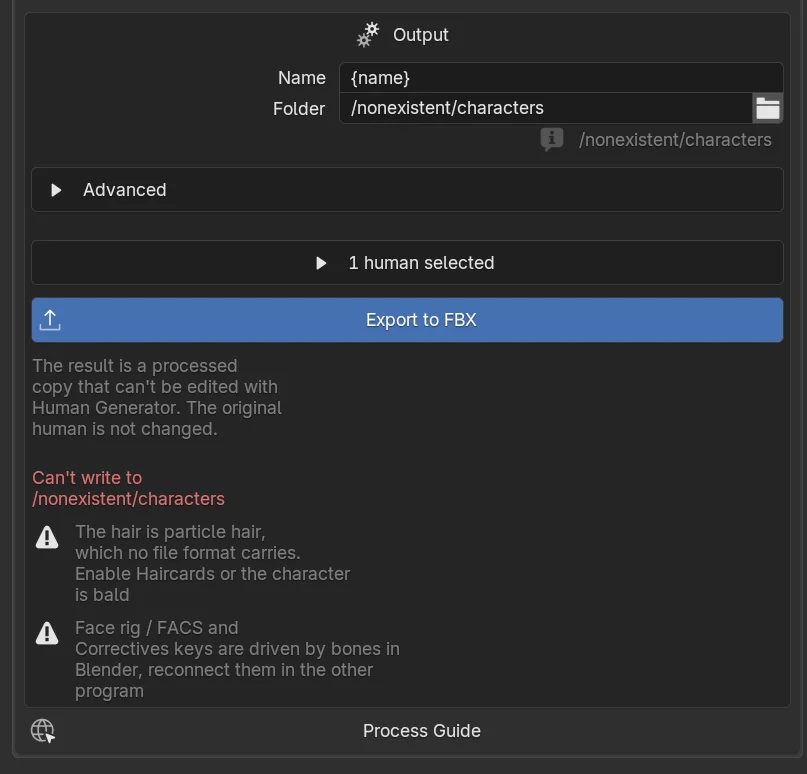
The tab checks your settings against the selected human while you work. A red line is an error that stops the process, for example a folder that can't be written. A grey line with a warning icon is something to be aware of, for example "The hair is particle hair, which no file format carries"; the process still runs. The warnings are repeated in the popup afterwards.
What happens when you press the button
Each selected human is processed one after the other, with the same settings. For every LOD level the add-on makes a fresh copy of the human and runs the sections on it:
- Shape keysThe face rig, expressions and sliders are kept, baked into the mesh or removed
- Hair cardsThe particle hair becomes textured cards with a haircap
- Eyes and teethThe layered eyes become game eyes, the teeth are reduced
- Bake texturesEvery material is baked to image maps and replaced by a simple material
- Optimize meshesThe body and clothing are reduced, the skin under clothing removed
- SkeletonControl bones, constraints and drivers go, the bones are renamed, a root bone is added
- NamesObjects, materials and textures get their final names
- WriteThe levels are joined under one skeleton and the file is written
The copy is removed again afterwards, unless the output is In this file or you asked to keep it.
How long does it take?
Texture baking is the slow part: every material is baked pass by pass. A human with an outfit, a hairstyle and a beard takes about one and a half minutes at the default 2k textures on an Apple M1 Max, one minute at 1k and three minutes at 4k; more LOD levels add less, as the levels share most textures. Lower the resolution in Bake Textures for quick test exports, and raise it again for the final one.
Several humans at once
Select more than one human and the button changes to Export 3 humans to FBX. Each human gets its own files, named after it, in the same folder. Open the humans selected list above the button to see which ones are included.
Processed copies in your file
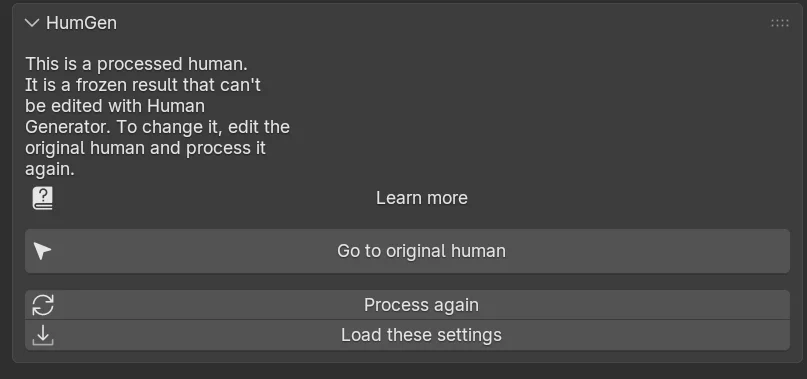
With the In this file output (the Blender render copy recipe) the result stays in your scene, two meters behind the original, in a collection called Processing Results. A processed copy is frozen: the Human Generator panel doesn't edit it, but shows buttons to jump to the original, process it again, or load the settings it was made with. See Output › Processed copies.
- The Process tab needs the HG_Export content pack, see HG Export pack missing?. It is not available in the trial version.
- Humans made before version 4 can't be processed.
- Rigify humans can't get a game skeleton. The skeleton section is skipped and their Rigify rig is exported as it is; the other sections run.
- Human Generator needs Blender 4.0 or newer; the process system is tested with Blender 5.1.
More in Known Limitations.
Frequently asked questions
Can Human Generator export characters to Unity, Unreal Engine and Godot?
Yes. The Process tab has a recipe for each: an FBX with a Humanoid skeleton for Unity, an FBX with the Mannequin bone names for Unreal Engine and a glTF with a humanoid skeleton for Godot, each with the textures packed the way that engine's shaders read them. Free, open source Companion plugins for the three engines set the character up on import. Any other program that reads FBX, glTF, OBJ or Alembic works with the Generic game recipe.
Does the hair export?
Particle hair can't be stored in any file format, so the Haircards section converts every hairstyle, beard, eyebrows and eyelashes to textured hair cards generated from the strands, with a haircap on the scalp. The cards are skinned to the head and come with baked color, alpha, normal and flow maps.
Is the exported character rigged and animatable?
Yes. The character has a plain deforming skeleton with a root bone, in a T-pose or A-pose, named for the engine, so Unity's Humanoid avatar, Godot's humanoid bone map and Unreal's IK Retargeter map it without manual work, and Mixamo animations play on the Mixamo export directly. The face rig and the 1-click expressions are exported as blend shapes, which face capture tools and animation clips drive.
Can I use exported characters in a commercial game?
With the commercial licence of Human Generator you can ship exported characters in commercial games and software, as long as players can't take the character out and reuse it. See Output › Licence of exported characters.
Does processing change my human?
No. The process runs on a copy and the original keeps its procedural skin, particle hair and full rig. Process it again whenever you change it.
Reference
- Recipe Format: every option of a recipe file.
- Known Limitations: what the process system can't do yet.
- Troubleshooting: the red lines in the tab, missing recipes, and Companions that do nothing.