
Optimize meshes and LOD levels
The process system is new and only in the early access version of Human Generator. It replaces the process tab of version 4.0, which is deprecated. Details can still change; if something doesn't work or looks wrong, let us know.
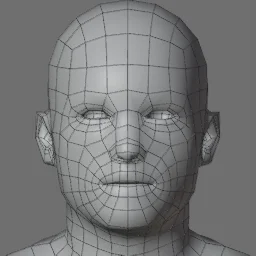
A Human Generator human is made for close-up rendering: about 50,000 triangles for the body alone, plus layered eyes with a transparent cornea and detailed teeth. Optimize Meshes brings that down to what a game or a crowd needs, with one picker per part, and makes up to four LOD levels of the same character.
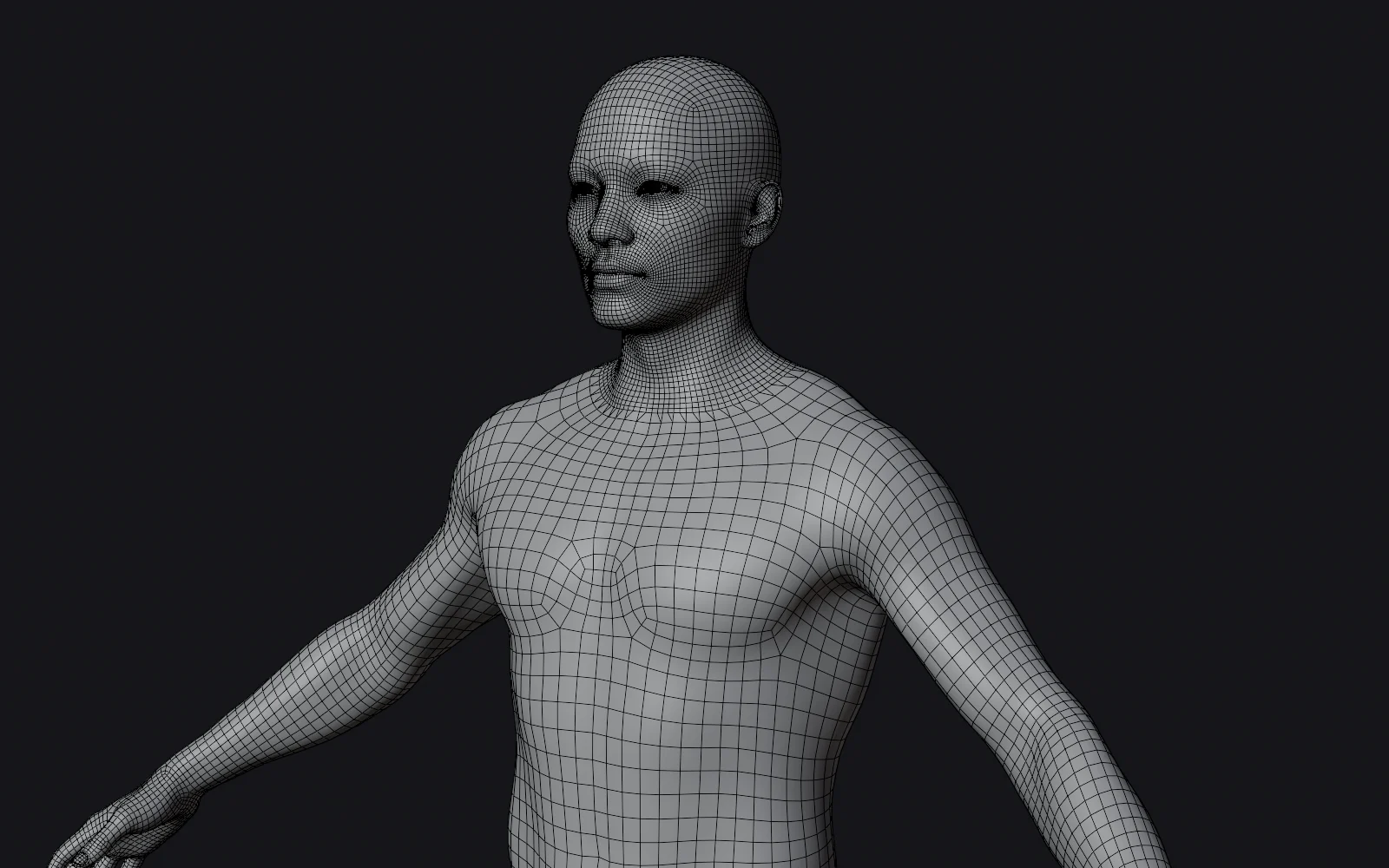 Full resolution
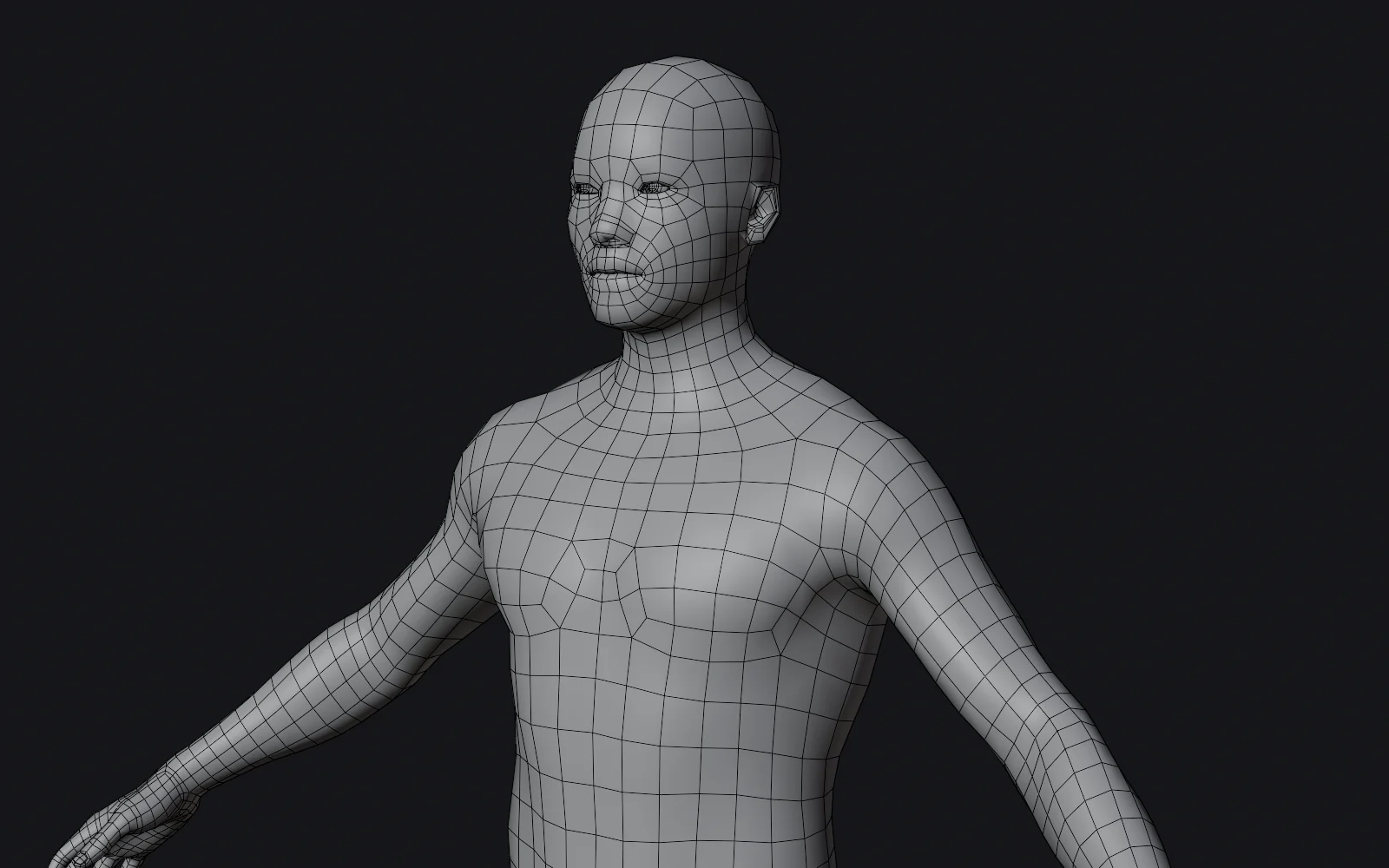 Optimized mesh
Every part has its own picker in the section. Click a thumbnail and the triangle count next to the part updates; the total is shown at the bottom.
Body
Clothing


Eyes
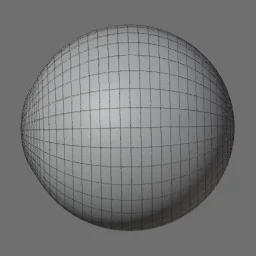
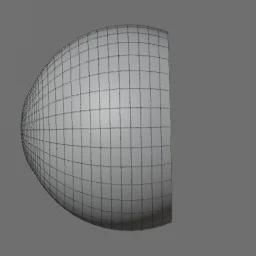


The transparent cornea of the original eyes relies on Blender's material system. In other programs it renders as a solid shell, hiding the iris. Keep the eyes at High or lower for any file export; the tab warns you when they are set to Original. Game eyes are one surface: the baked normal map gives the iris its cavity, and the Unity Companion's eye shader refracts it behind the cornea; without such a shader they look flat up close, which is the trade-off.
Teeth


Tell us at what camera distance they stopped looking right, and in which program. Tell us.
Skin under clothing
Remove skin under clothing (on by default) deletes the parts of the body that the clothing covers. In Blender this is done by mask modifiers, which exporters don't apply, so without it the whole body is in the file under every garment. Turn it off if you plan to swap or remove the clothing in the engine.
Advanced: clothing modifiers
Remove clothing subdivision and Remove clothing solidify strip those modifiers from the clothing before it is exported. Exporters apply modifiers, so a subdivision modifier would multiply the triangles of the clothing by four, and a solidify modifier doubles them. Leave both on for games; turn them off if you make a render copy and want the clothing exactly as it is in Blender.
LOD levels
Set LOD levels at the top of the tab to 2, 3 or 4 and every part gets one row per level: level 0 is the full character, each further level a lighter one. A new level starts one quality tier below the previous one (from Original it starts at High), so you only adjust what you want. The totals at the bottom show the triangles of each level.
Each level is a complete copy of the character with its own hair cards. In a file export the levels share one skeleton and one set of textures (only the eyes and hair cards get their own, as their UVs change with the quality), and the meshes are named Jake_Body_LOD0, Jake_Body_LOD1, … Unity turns these into an LOD Group on import; other engines have an import option for LOD meshes. With In this file each level is a separate processed copy.
The quality tiers
When you add a level, its parts are set from a tier. The tiers are also what the Python API uses:
| Tier | Body | Clothing | Eyes | Teeth | Hair cards | Bones per vertex |
|---|---|---|---|---|---|---|
| Original | Original | Original | Original | Original | Ultra | Unlimited |
| Ultra | Original | Original | High | Original | Ultra | 8 |
| High | Original | High | High | Medium | High | 4 |
| Medium | Lower face | Medium | Medium | Medium | Medium | 4 |
| Low | 1/4th | Low | Low | Low | Low | 4 |
| Mobile | 1/4th | Low | Low | Low | Haircap only | 2 |
When the section is off
With the checkbox off, every mesh stays as it is, including the original eyes, and nothing under it applies. That is what the Blender render copy recipe does, and with several LOD levels it means every level has the same meshes, so there is little point in having more than one.
Render times in Cycles hardly change with fewer triangles; the texture resolution matters far more for speed and memory. See the Skin guide for lowering the texture resolution of a human, or Bake Textures for a baked copy.
The body of a human made with the trial version can't be reduced. Clothing, eyes and teeth can.
Mesh quality from Python
from HumGen3D import QualitySettings

settings.lods = [QualitySettings.from_tier("high"), QualitySettings.from_tier("low")]
settings.lods[1].clothing = "medium"
settings.meshes.remove_hidden_skin = False
To reduce a human in place (do this on a human.duplicate(), it can't be undone), use human.process.set_quality(QualitySettings.from_tier("medium")), or the single steps of LodSettings (human.process.lod). See QualitySettings, MeshSettings and ProcessSettings › set_quality.