
Pose
How Human Generator's pose system works.
There are multiple ways to pose HG humans:
- Using our pose library.
- Manually posing the humans.
- Using the Rigify control rig.
Pose library
Human Generator includes a library of poses that are ready to use. For an overview of all included poses, see Human Generator Base Content.
To add a pose from the library, make sure you are in the "Library" tab of Human Generator's "Pose" panel. Click on the selection square to see the options, and select a pose from one of the previews. You can narrow down the options with the search field or the category dropdown.
The poses from the library are regular Blender poses. You can use these as a starting point and edit them to your liking. For information on how to edit poses, see Manual posing
Python API - Adding poses
To add a pose to the human instance, you can use
options = human.pose.get_options()
chosen_option = options[0] # Select specific one, or randomly
human.pose.set(chosen_option)
For more options, see PoseSettings
Manual posing
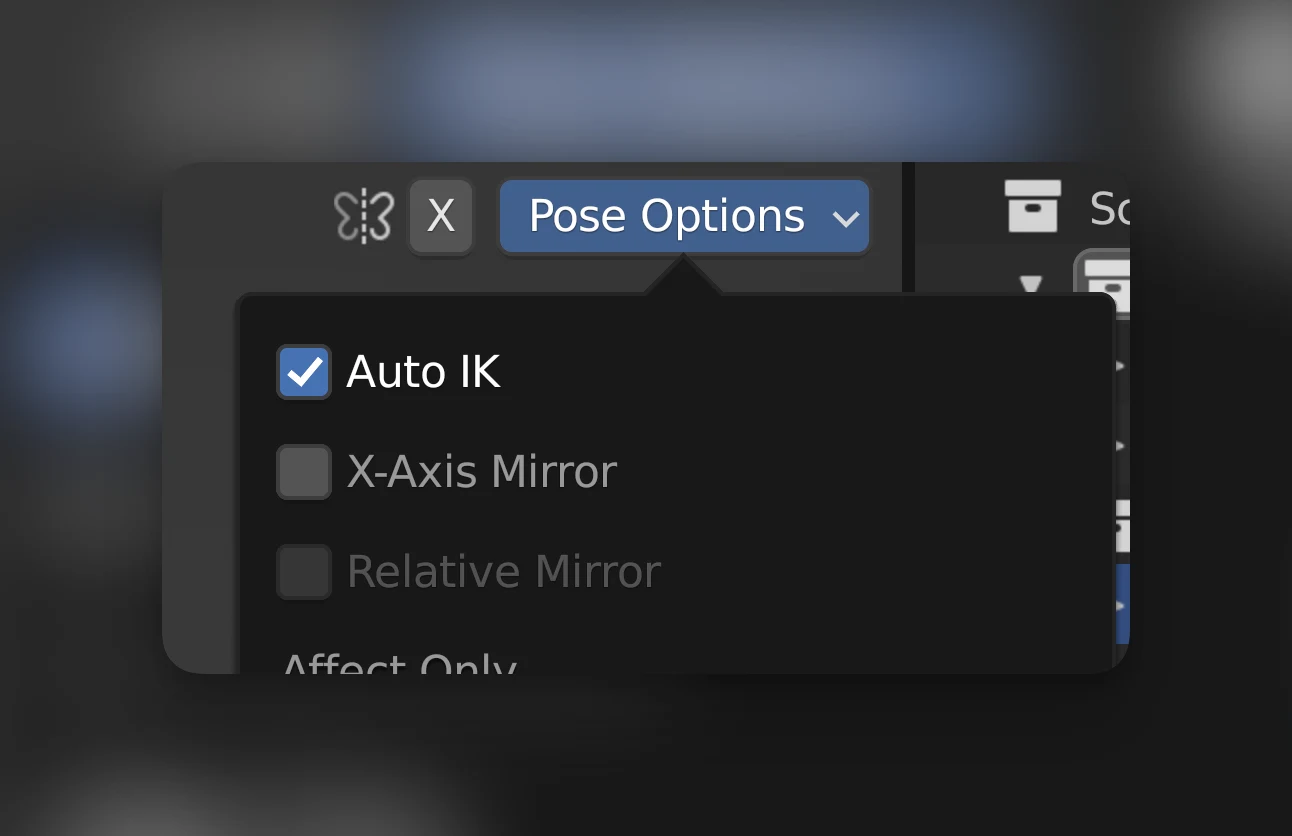
You can manually pose the human by selecting the armature/rig object of the human and switching to "Pose mode" (Shortcut: Ctrl + Tab). Select one of the bones, and press g to go into movement mode. NOTE: Make sure "Auto IK" is turned on in the "Tool" tab, this makes posing easier.
We recommend using Auto-IK if you pose using g movement mode. You can enable this in the Pose options (see screenshot). Also, if you want your changes mirrored on both sides, you can enable X-axis mirroring in the same place.
Want to save your custom pose to the library so you can re-use it later? See Custom pose.
Rigify
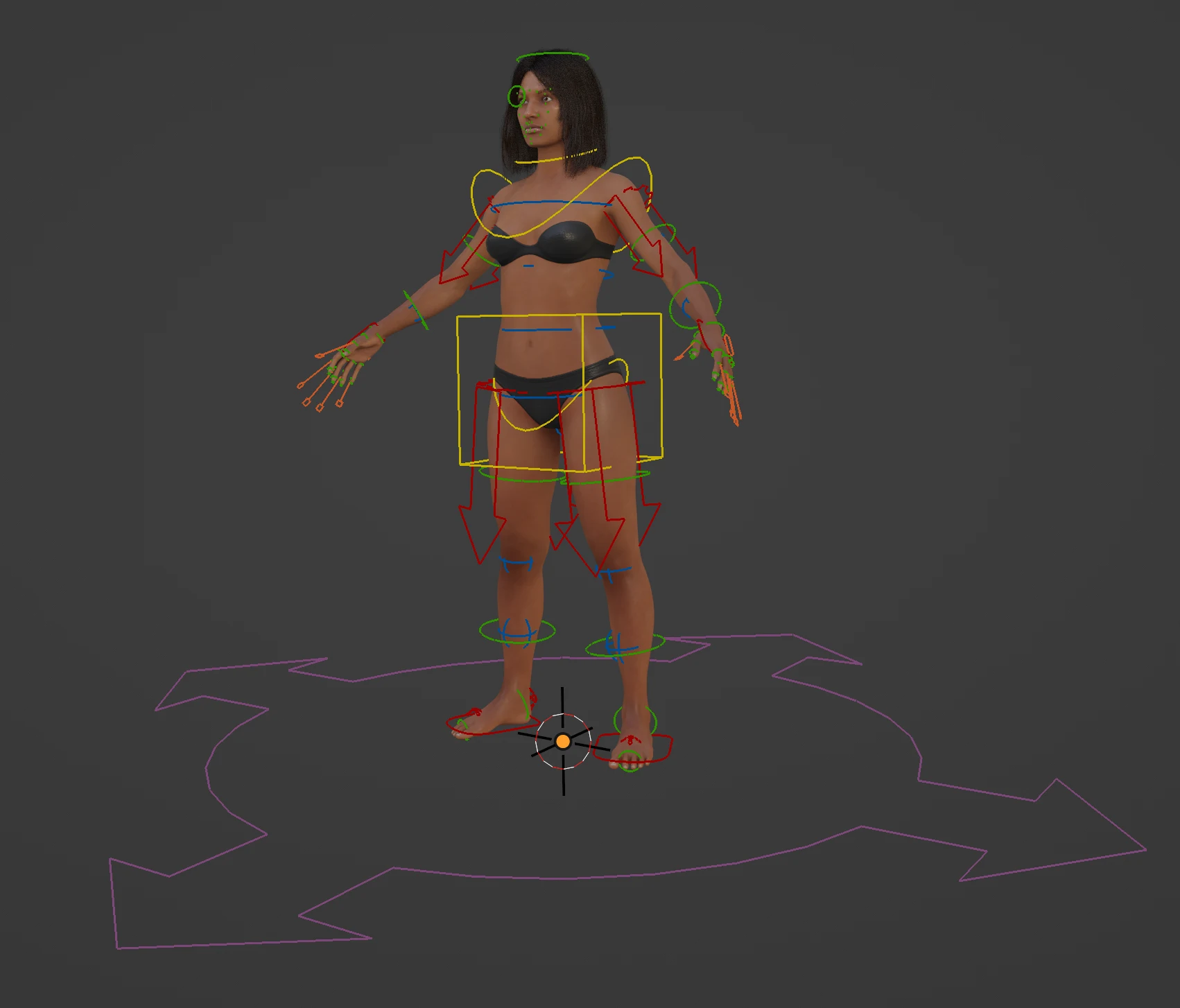
Human Generator can also generate a Rigify control rig for your human. You can find the button to generate the Rigify rig inside the Rigify tab of the Pose tab.
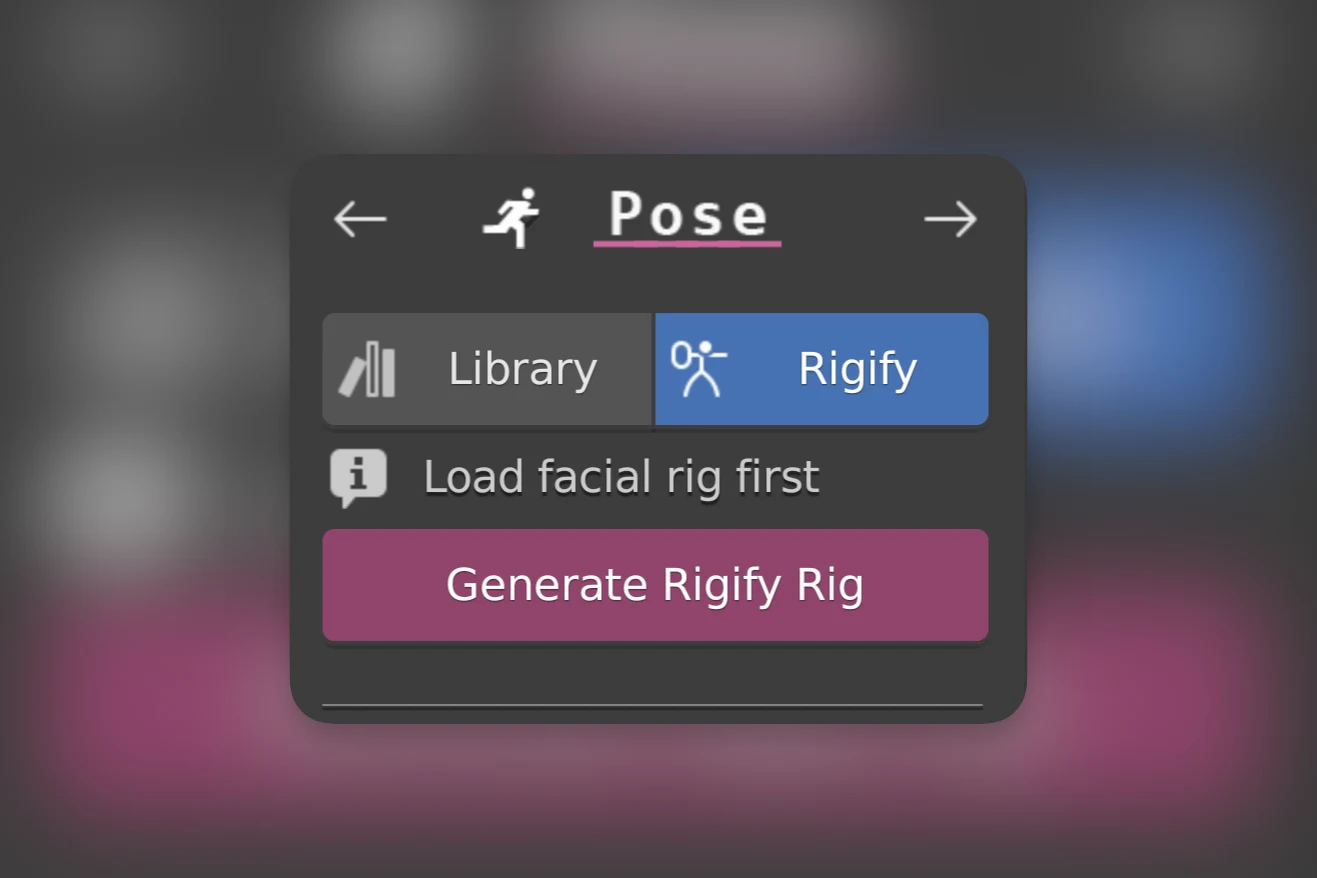
If you want to control the face rig using the Rigify rig, make sure to load the face rig before generating the Rigify rig using this button. If you will instead use 1-click expressions you can ignore this.
This is what the result looks like:
 How to pose and animate a Rigify rig is outside the scope of this documentation. For more information see:
- The Rigify documentation:
- Video Tutorial Posing the Rigify rig by CGDrive