
How to install HG
This tutorial shows you how to install Human Generator!
Step 1:
Download the content packs (.hgpack) and the add-on HumGen3D_V?_?.zip. These can be found in the Where to find my downloads page.
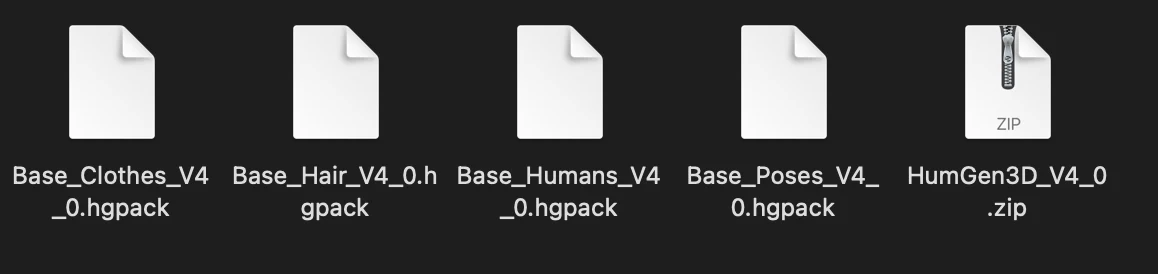
Step 2:
Inside Blender, go to edit>preferences>add-ons and press Install. (The install button is in the top right corner). A popup will open to find the add-on. Find the Human Generator add-on file you downloaded (the HumGen3D_V?_?.zip) and press Install add-on.
The add-on should remain as a .zip file, do not manually unzip it. Some browsers (like Safari) automatically unzip files. In this case either retrieve the original .zip from your trash folder or redownload it with another browser.
Step 3:
Now Human Generator should appear in your add-on list. If the preferences didn't automatically open, make sure the add-on is enabled (checkbox) and the preferences are opened (arrow to the left of the checkbox). Select a path for Human Generator to install the content packs in. If the Human Generator install screen did not show up right away, go to edit>preferences>add-ons>Human Generator and use the small button on the left to open the HG preferences.
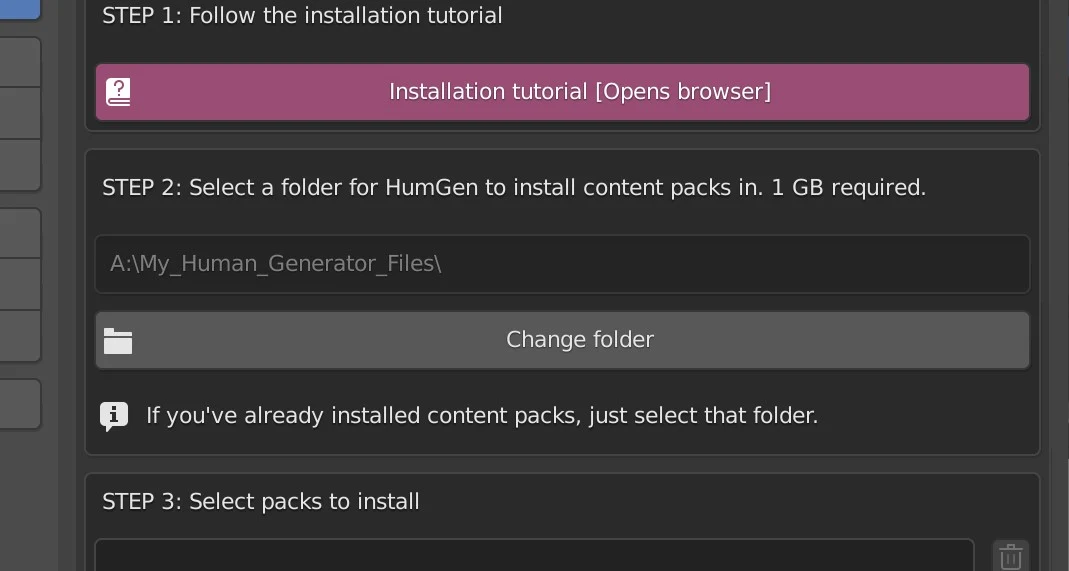
It's recommended to use an empty folder with at least 2.5 GB of free space! This is where all content packs will be installed. Changing the folder location later might unlink the textures from the models.
Step 4:
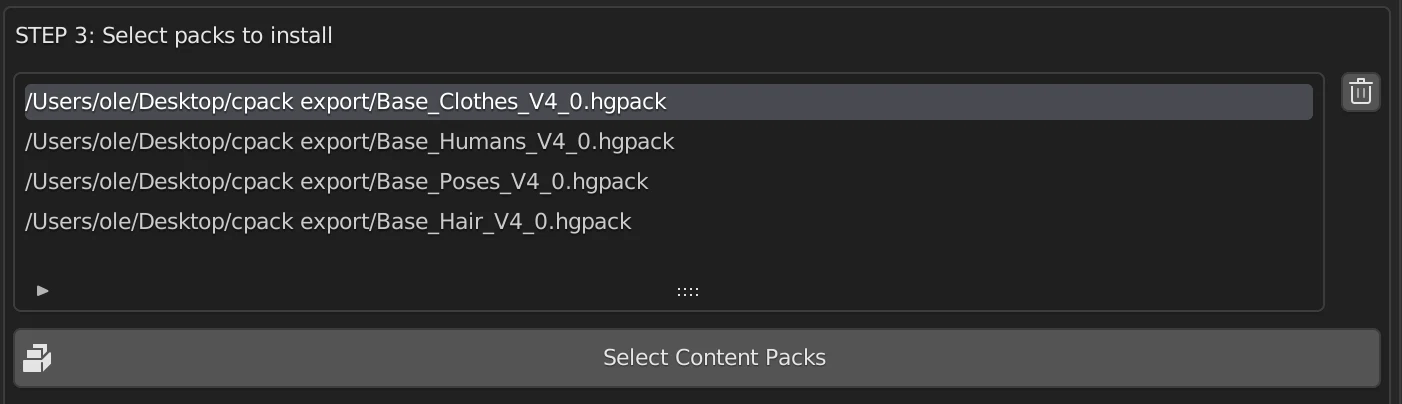
Select the content packs you downloaded (.hgpack), you can use the Ctrl key (Windows) or the CMD key (MacOS) to select multiple files in one go. If a red error message appears behind a file, it will not be installed.
Step 5:
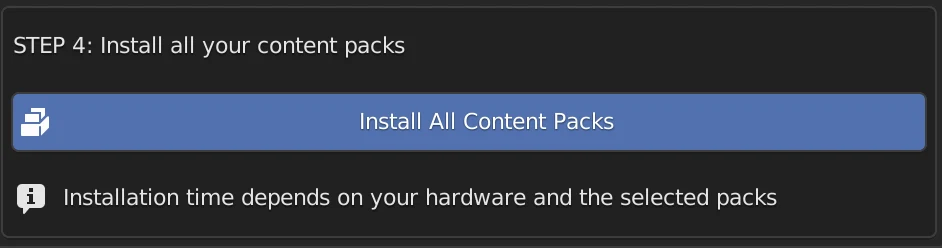
Press Install All Content Packs. This will install the selected packs into the folder you selected in step 2. It might take some time, as GigaBytes of data is being uncompressed.
Human Generator is now successfully installed!
Ran into any issues? Contact Us