
Custom starting humans
Want to make your own presets? Or did you make a character that you want to re-use more often? You can save them as a starting human and they will show up in this list:
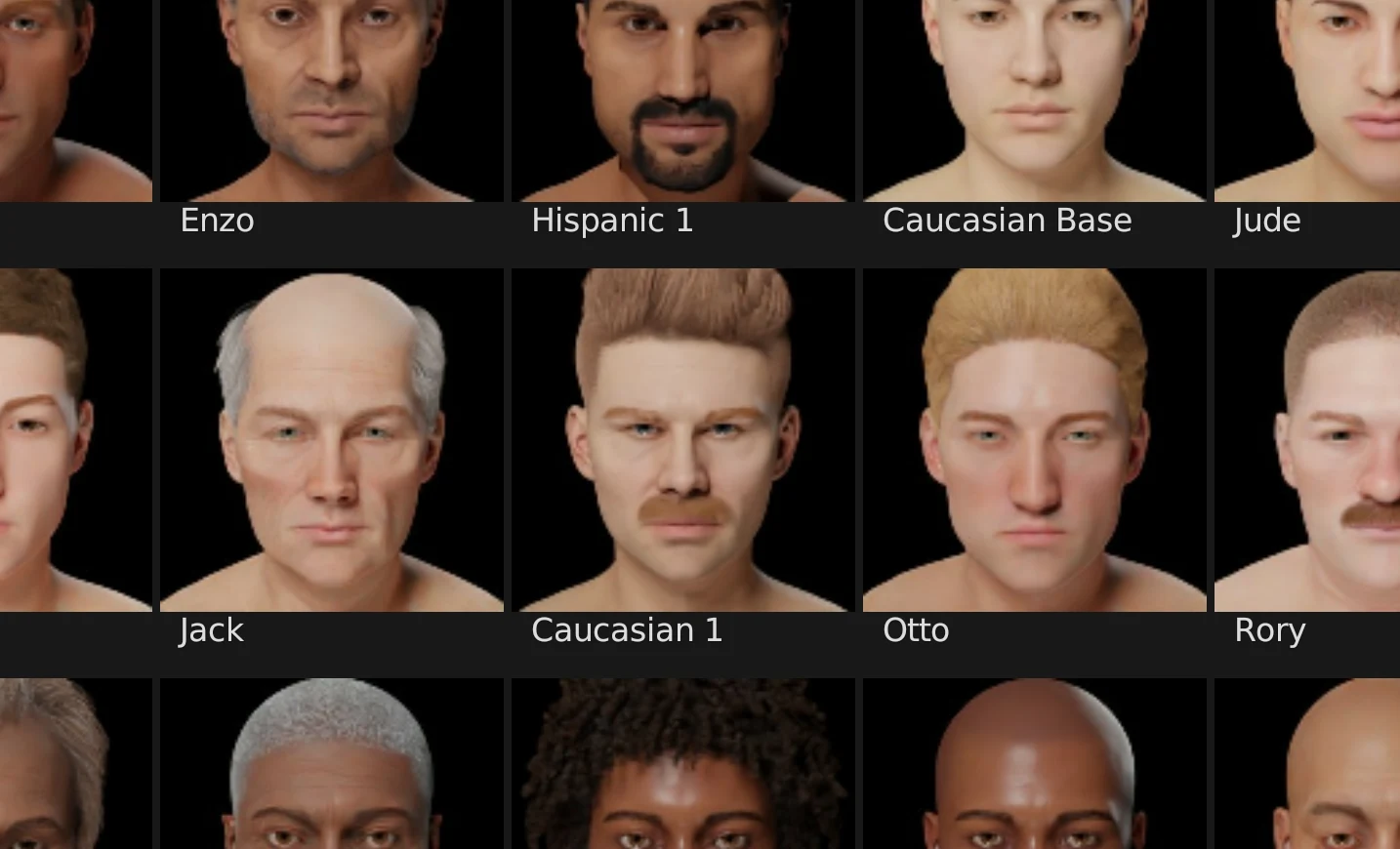
If you've used the Processing system it's not recommended to save the human as starting human. The processing system can break functionality, and errors might occur during the saving process.
1) Make changes to the human
First, create the human that you want to save as starting human. Not just the values of the sliders get saved, but also what hairstyle and clothes were selected. Basically all adjustments except the ones mentioned below get saved.
- The pose of the character
- The expression of the character
- If you've generated a Rigify rig, the starting human will use the default rig
- If you've generated the face rig, it will not be loaded on the starting human by default
- Anything done in the Processing system. NOTE: It's in either case not recommend to save humans that have been processed as starting humans.
- Any custom sculpting or manual edits to either the mesh or the materials. Custom sculpting can be saved as a custom shape key, see the point below.
- Any shape keys that have not been saved first. Did you make custom shape keys? Save them to the library before saving the starting human. See Custom shape keys.
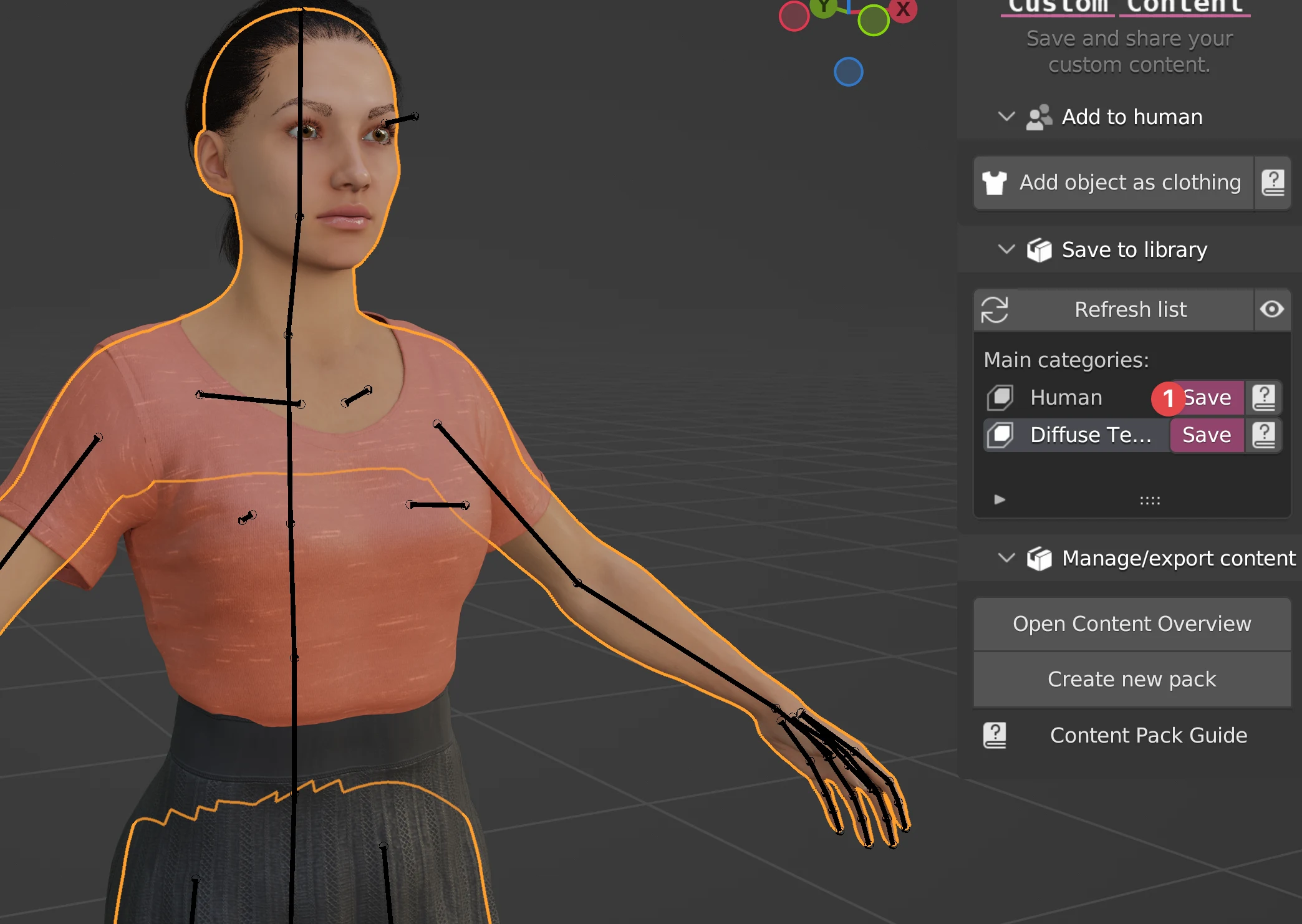
2) Go to the "Custom Content" tab
The switch is located at the top of the Human Generator interface. NOTE: Make sure the human that you want to save is the active object. Press Save (1) to start the saving process.
3) Choose a thumbnail
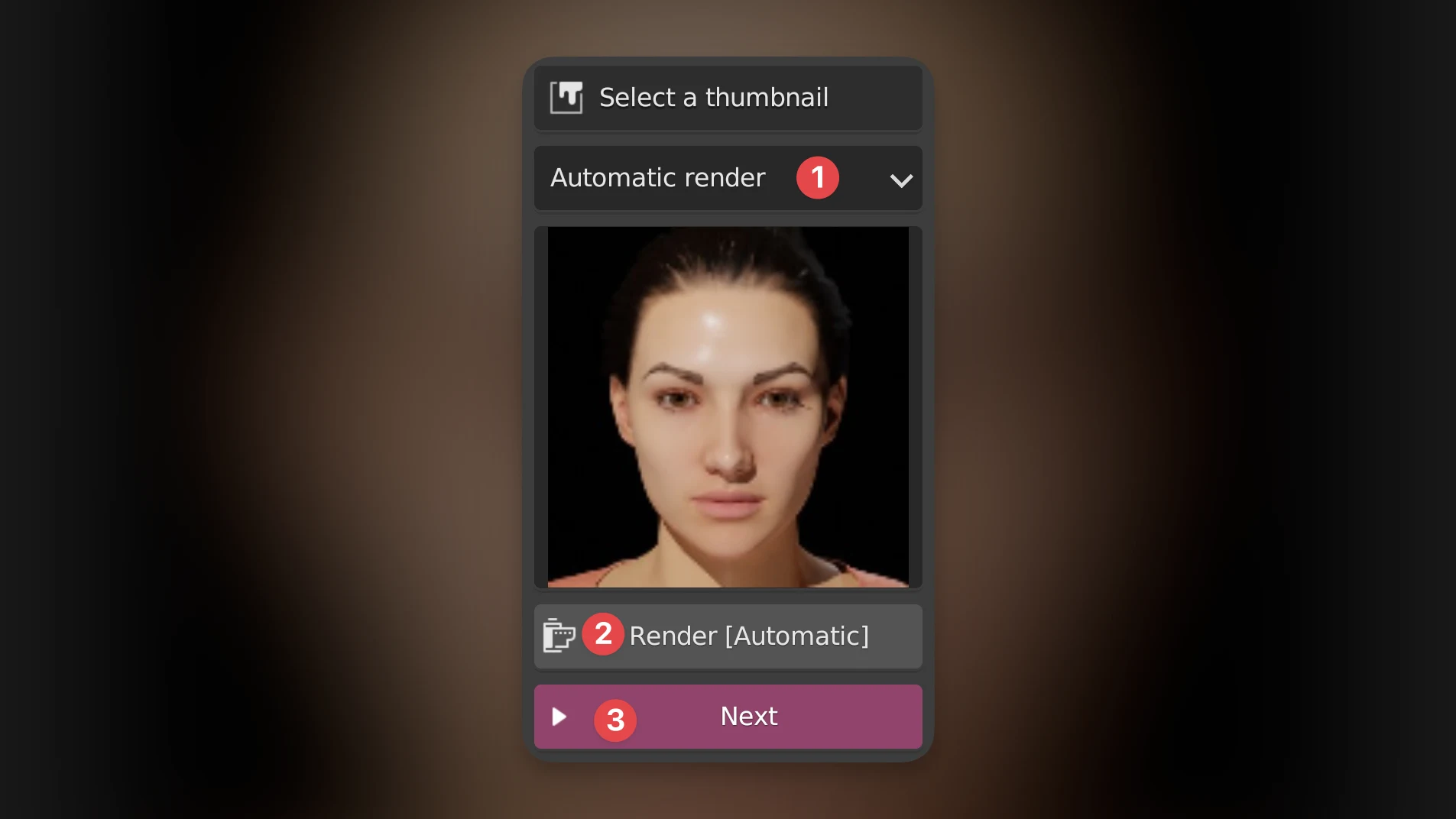
It's best if your starting human has a thumbnail. HG offers multiple ways to add a thumbnail to your item. For an explanation of all methods, see Custom thumbnails.
You can change the thumbnail method in the dropdown (1). For now, we will use the quick and easy "Automatic render". Click the button (2) and the created thumbnail will be previewed. Then press next (3).
4) Choose a category
Starting humans are sorted into categories. Here you'll choose a category to save your pose in.
You can choose an existing category in the "Existing" tab (1) by selecting a category from the dropdown (3). Want a category with a custom name? Go to the "Create new" tab (2) and fill in your own name.
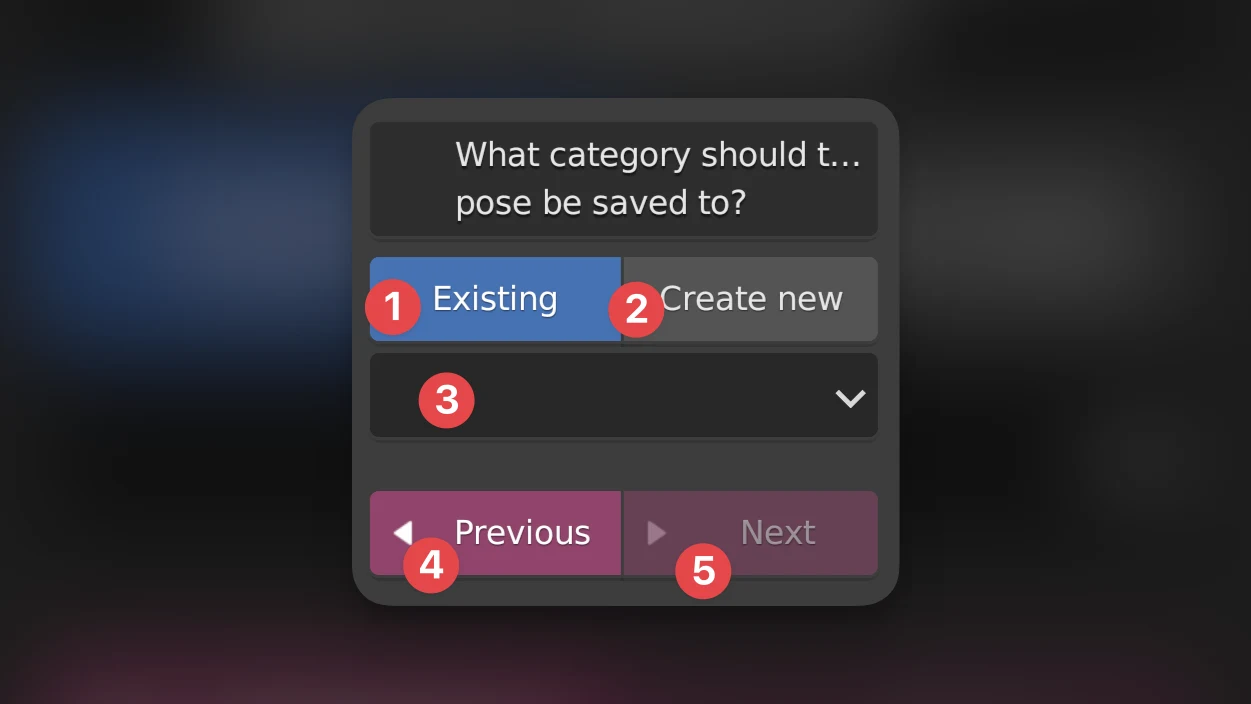 Want to go back to the previous screen? Use the "Previous" button (4). The "Next" button (5) will become available once you've chosen a category.
5) Give a name to your starting human
This name will show up in the starting human selector and will become the filename.
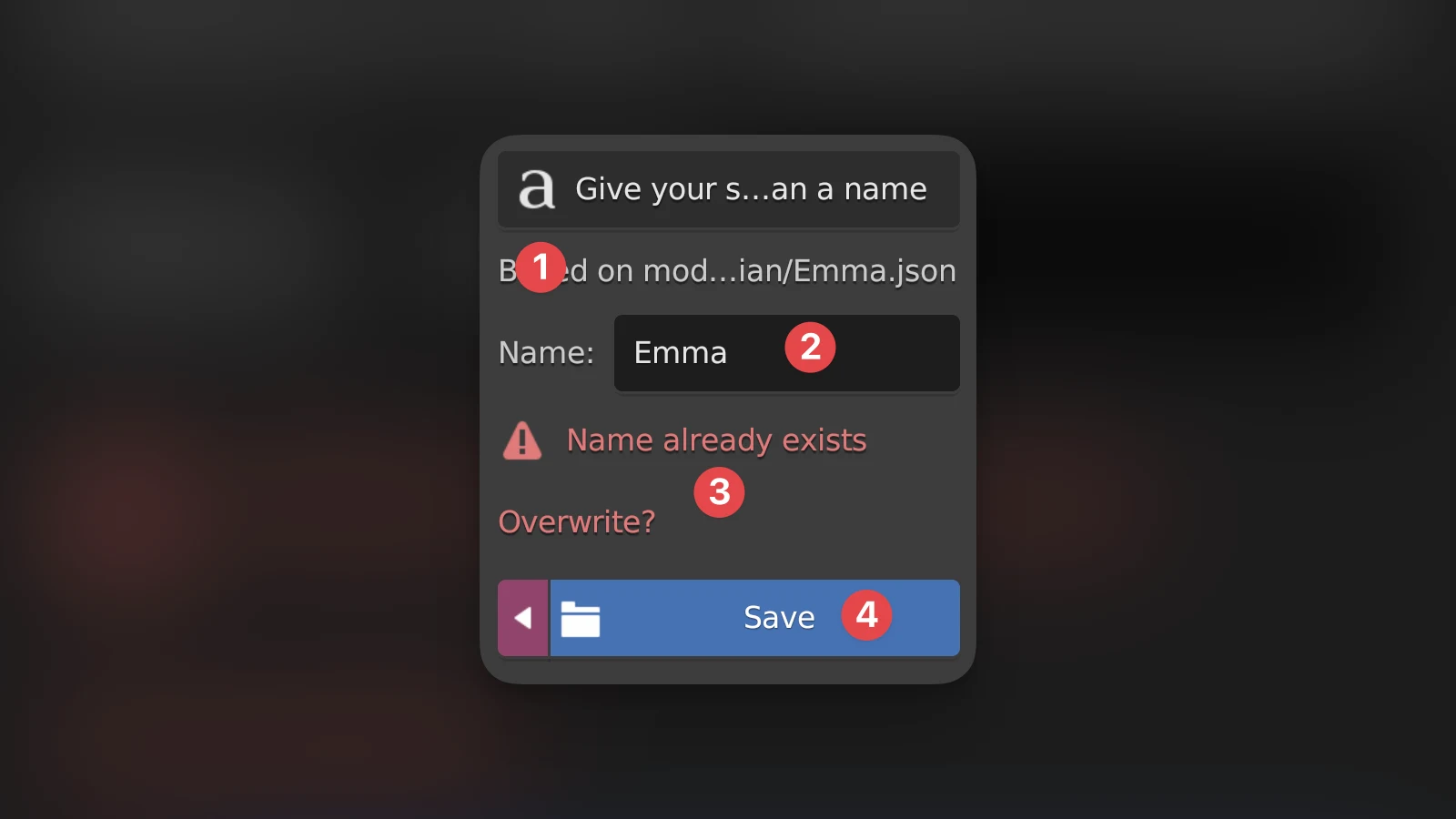
- Based on: This will show what preset this starting human was based on. Useful if you want to overwrite an existing preset by giving it the same name.
- Name: Fill in the name here that you want to give to the starting human
- Overwrite warning: If you choose a name that already exists, it will overwrite the existing starting human. THIS CANNOT BE UNDONE
- Save: Press here to save and end the saving process
6) The starting human has been saved!
It's now available in the starting human selector screen. Want to share the starting human with others? See Exporting your content as a pack. NOTE: When sharing your starting humans, don't forget to include any custom shape keys you've created in the pack.
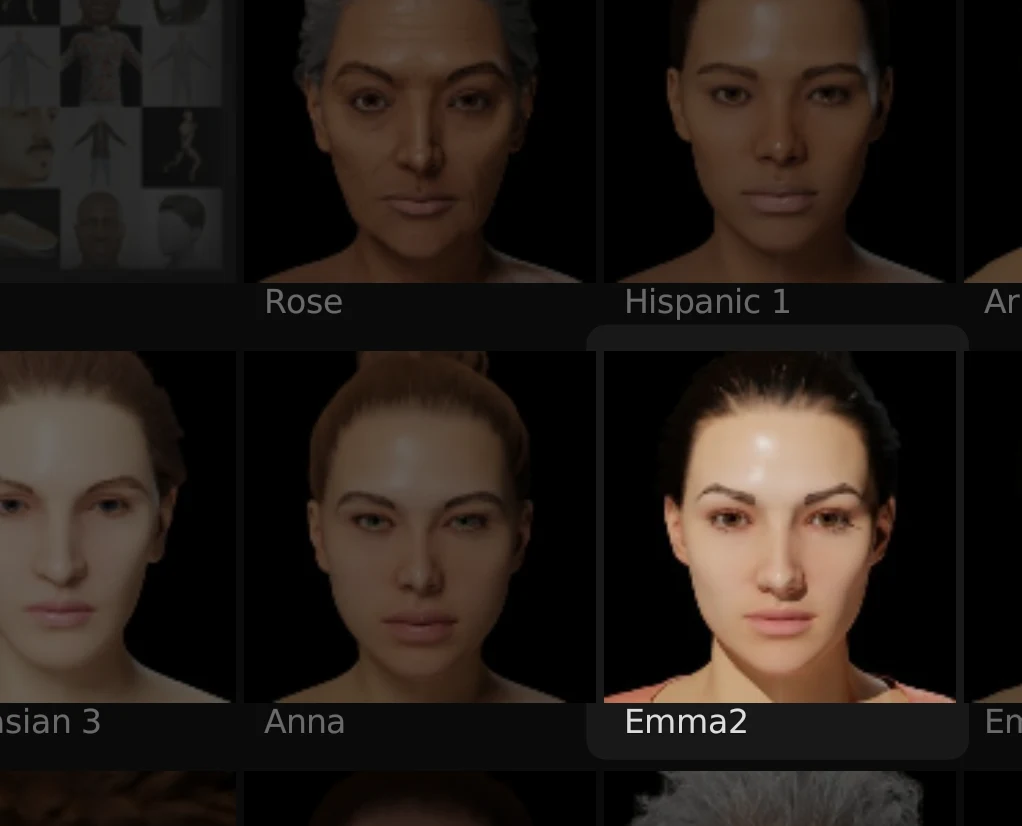 (Note: We renamed the starting human to Emma2 in this tutorial to prevent overwriting our preset. HG will not add numbers to the names, it will overwrite instead.)
Starting humans are .json files following a predefined structure to save all attributes of a human. They are accompanied by a .jpg thumbnail of the exact same name.
Both are located in the {hg folder}/models/{gender}/{category}/ folder.