
Animations
The process system is new and only in the early access version of Human Generator. It replaces the process tab of version 4.0, which is deprecated. Details can still change; if something doesn't work or looks wrong, let us know.
Animations exports animation clips along with the character: the animations you put on the human in the Pose section, or clips straight from the Human Generator animation library. The clips are fitted to the exported skeleton, so they play on it in the engine even though the bones were renamed, removed or put in a T-pose by the Skeleton section.
The section is off in every recipe. Turn it on when you want the clips in the export; it is only shown for outputs with a skeleton (FBX, glTF and In this file).
The animation library and this section are still being tested, so they are hidden by default. Turn on Show experimental features under Advanced options in the add-on preferences (Edit > Preferences > Add-ons > Human Generator 3D) to show them. The Python API and recipes with "animations": {"enabled": true} work without the preference.
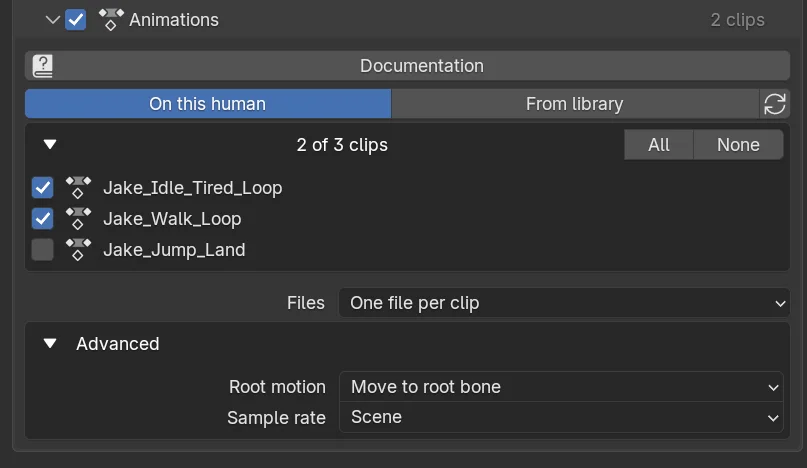
Clips
Where the clips come from:
- On this human: the animations on the human itself, the active one and the ones in its NLA tracks. These are the animations you applied in the Pose section, and anything you animated or retargeted yourself.
- From library: any clip of the animation library, retargeted to this character on export. The human doesn't need to have them applied; a quick way to ship a character with a set of idles, walks and runs.
Open the list to tick the clips you want; All and None tick the whole list. The refresh icon lists the animations of the selected human again, for example after you added one.
Clips from the Human Generator library are stored independently of the rig, so they are retargeted cleanly onto the exported skeleton, including the T-pose. Other actions, like motion capture you applied yourself, are exported as they are, in the A-pose rest pose of Human Generator. They play correctly with the A-pose rest pose; with the T-pose they come out with the arms raised. The list marks these with a different icon and the tab points it out.
Files
Where the clips go, for a file export:
- One file with all clips:
Jake_Animations.fbxnext to the character, with every clip as a take. The usual layout for Unreal, and tidy for a character with many clips. - One file per clip:
Jake@Run.fbx,Jake@Idle.fbx, … the@convention of Unity, which then shows the clips under the character automatically. - In the mesh file: the clips as takes inside the character file itself. One file to hand over; what Godot and glTF viewers expect.
The clip files hold the skeleton and the animation only, no meshes, so they stay small. With the In this file output the clips end up as NLA strips on the processed copy.
Advanced
Root motion
Where the forward movement of a walk or run lives.
- Keep on hips: the hips bone carries the movement, as in Blender. The engine treats the animation as in-place or reads the hips, depending on its settings.
- Move to root bone: the movement is moved from the hips to the root bone, which is what Unity, Unreal and Godot call root motion and use to move the character controller. Needs the root bone of the Skeleton section. The Unity, Unreal and Godot recipes set this.
Sample rate
FBX only. The frames per second the clips are sampled at in the file: the frame rate of the Scene, or a fixed 24, 30 or 60. Use a fixed rate when the engine expects one regardless of your scene settings.
Animations from Python
settings.animations.enabled = True
settings.animations.source = "library"   # or "human"
settings.animations.clips = None         # every clip; or a list of action names / library presets
settings.animations.layout = "per_clip"  # "single_file", "per_clip", "with_mesh"
settings.animations.root_motion = "root"
To give a processed copy its clips in place, after its skeleton is converted:
clips = copy.process.prepare_clips(settings.animations, source=original_human)See AnimationClipSettings and ProcessSettings › prepare_clips. To put animations on a human in Blender, see AnimationSettings (human.animation).