# Custom hairstyle
> Human Generator for Blender documentation. Web version: https://humgen3d.com/docs/custom-content/custom-hairstyle
Edited one of the existing hairstyles? Or have you created a new hairstyle? This guide shows you how to save this style to the Human Generator library and make it show up in the hair selector:
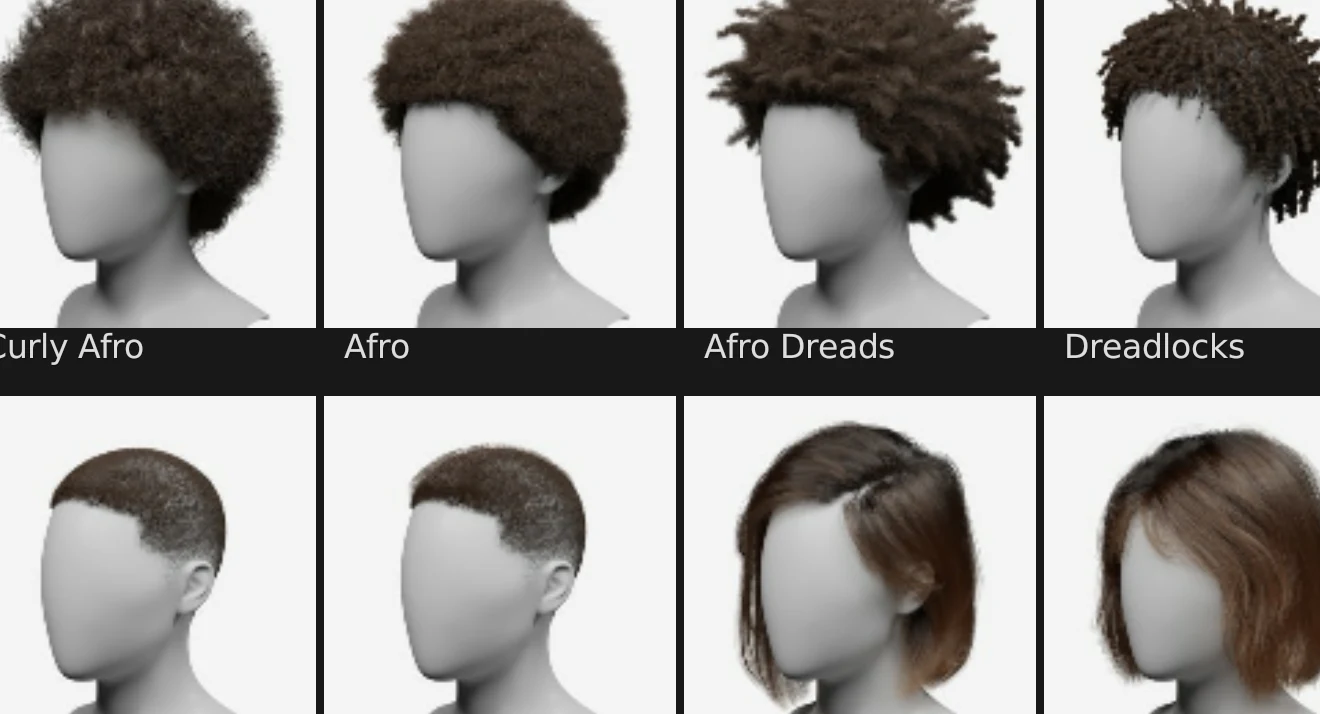
### 1) Making a particle hairstyle
Human Generator works with Blenders particle hair system.
>**Hair nodes**
>Hair nodes are currently **not** supported by Human Generator
Alex Lashko, the co-creator of Human Generator, has made a complete set of tutorials on making particle hairstyles:
> **All tutorials**
>
>
>
>
>
### 2) Go to the "Custom Content" tab
The switch is located at the top of the Human Generator interface. **NOTE:** Make sure the human who's hairstyle you want to save is the active object.
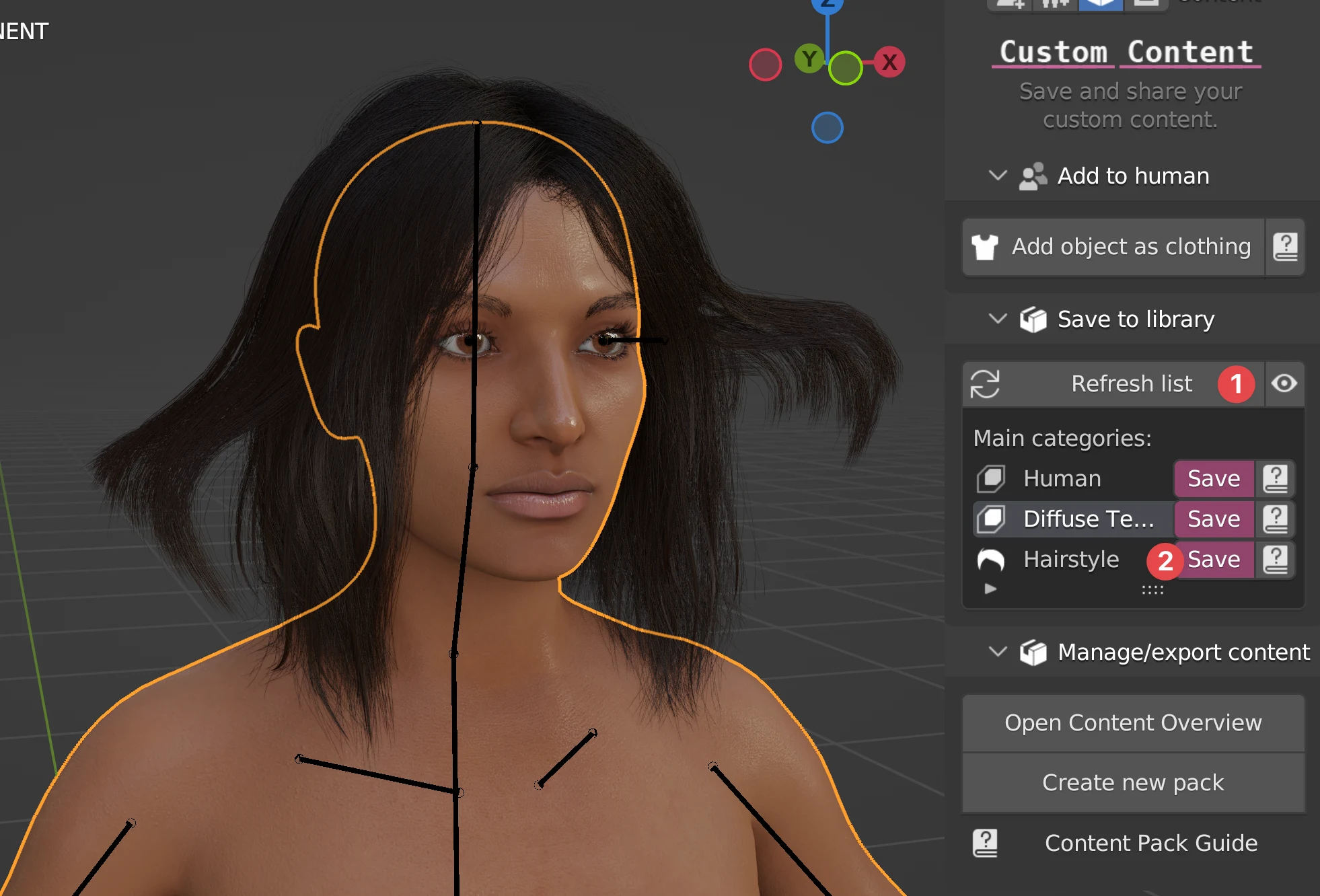
Press **Save** (2) next to "Hairstyle". If Hairstyle does not show up, press Refresh (1).
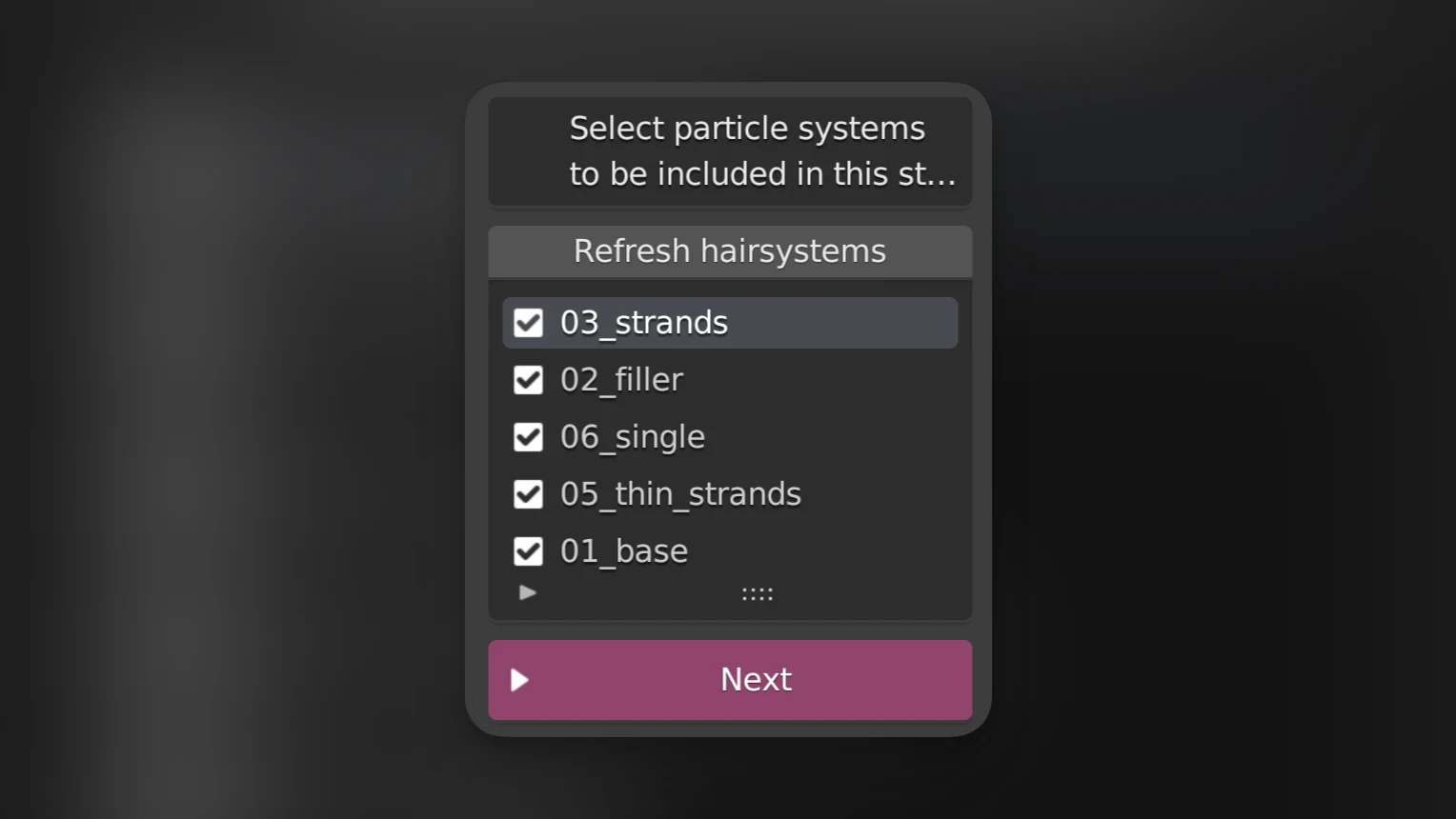
### 3) Select particle systems
Because hairstyles can consist of multiple particle systems combined, you have to select which of the particle systems should be included. In this case all of them.
### 4) Select thumbnail
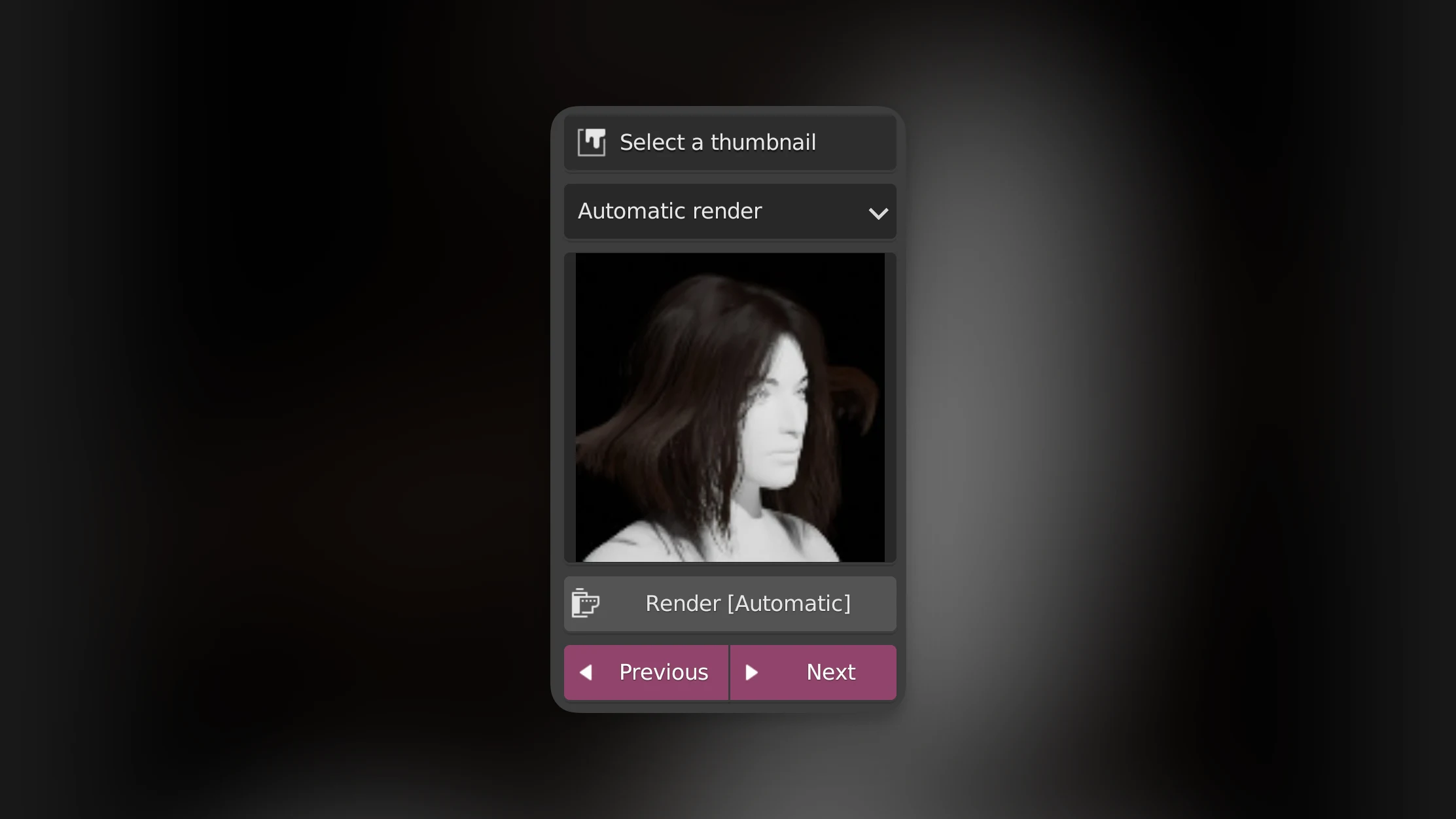
It's best if your hairstyle has a thumbnail. HG offers multiple ways to add a thumbnail to your item. For an explanation of all methods, see Custom thumbnails.
For now, we will use the quick and easy "Automatic render". Click the render button and the created thumbnail will be previewed. Then press next.
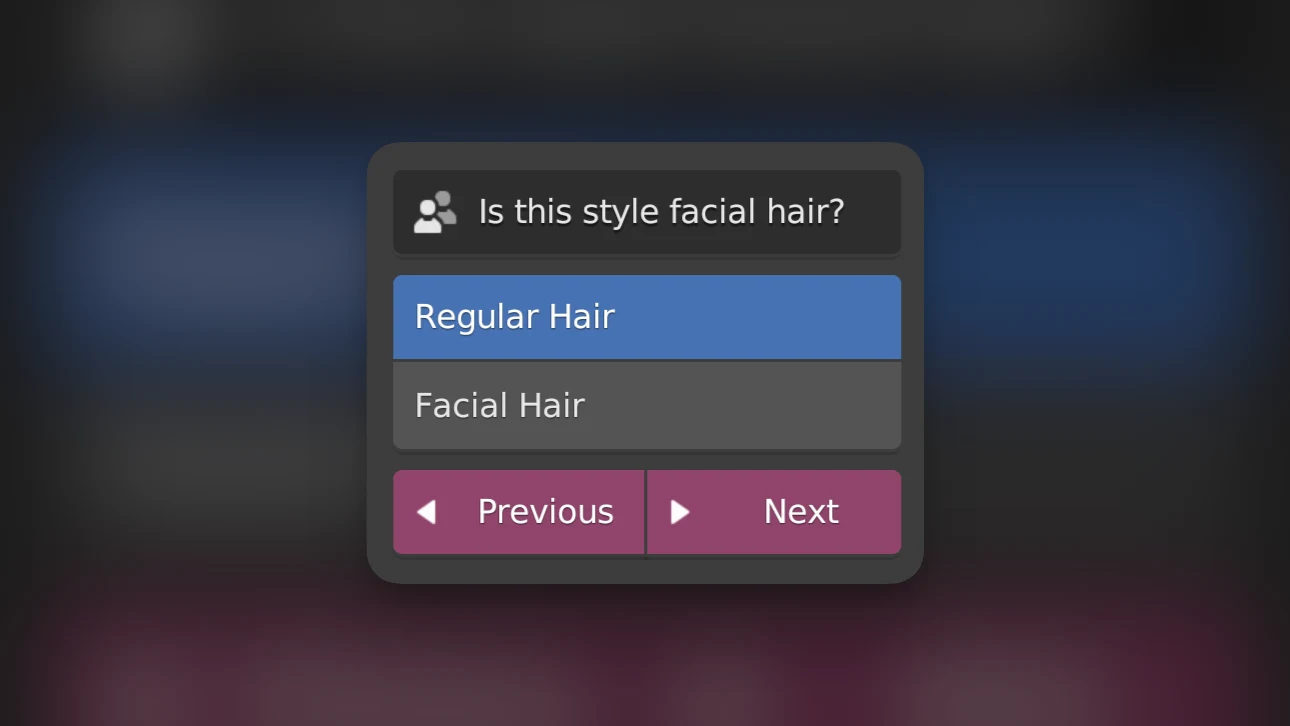
### 5) Select hair type
Choose if the hairstyle should show up in the regular hair section or in the facial hair section (male only). Then press next.
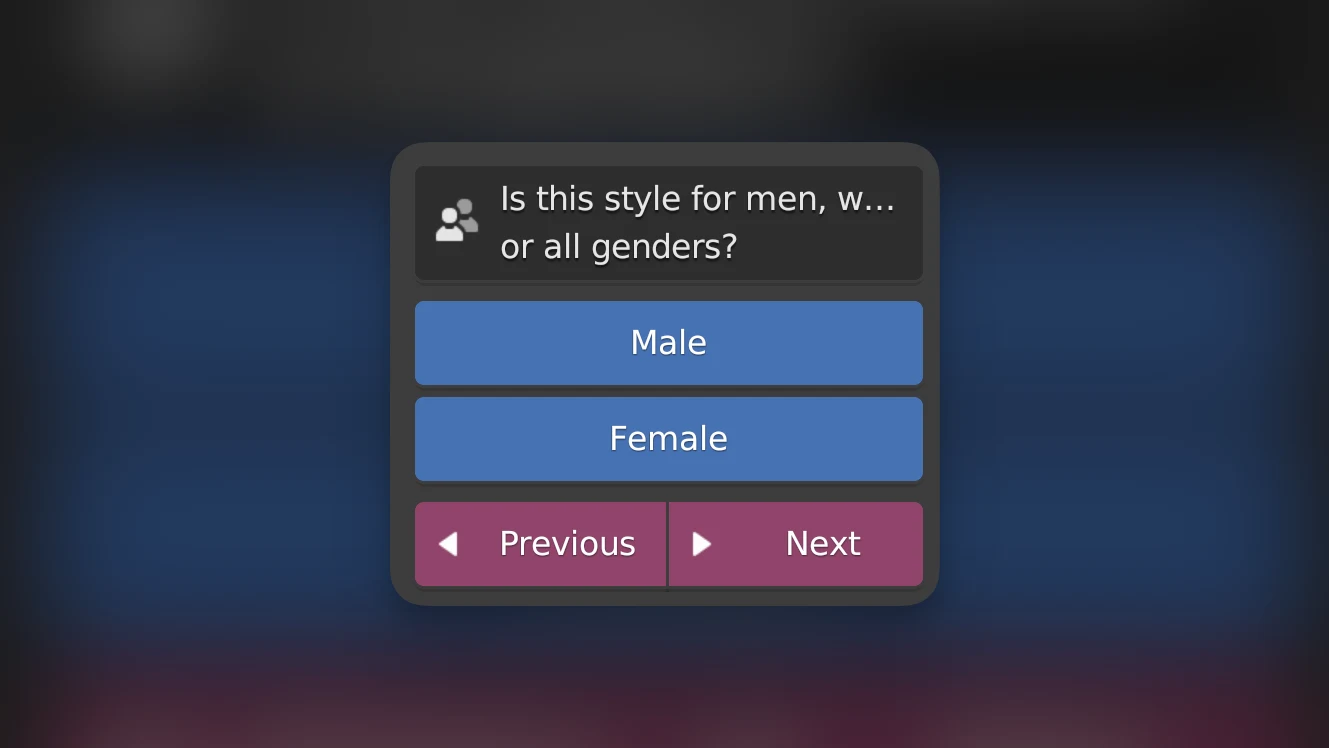
### 6) Select gender
Choose if this hairstyle should be available for men, women, or for both genders.
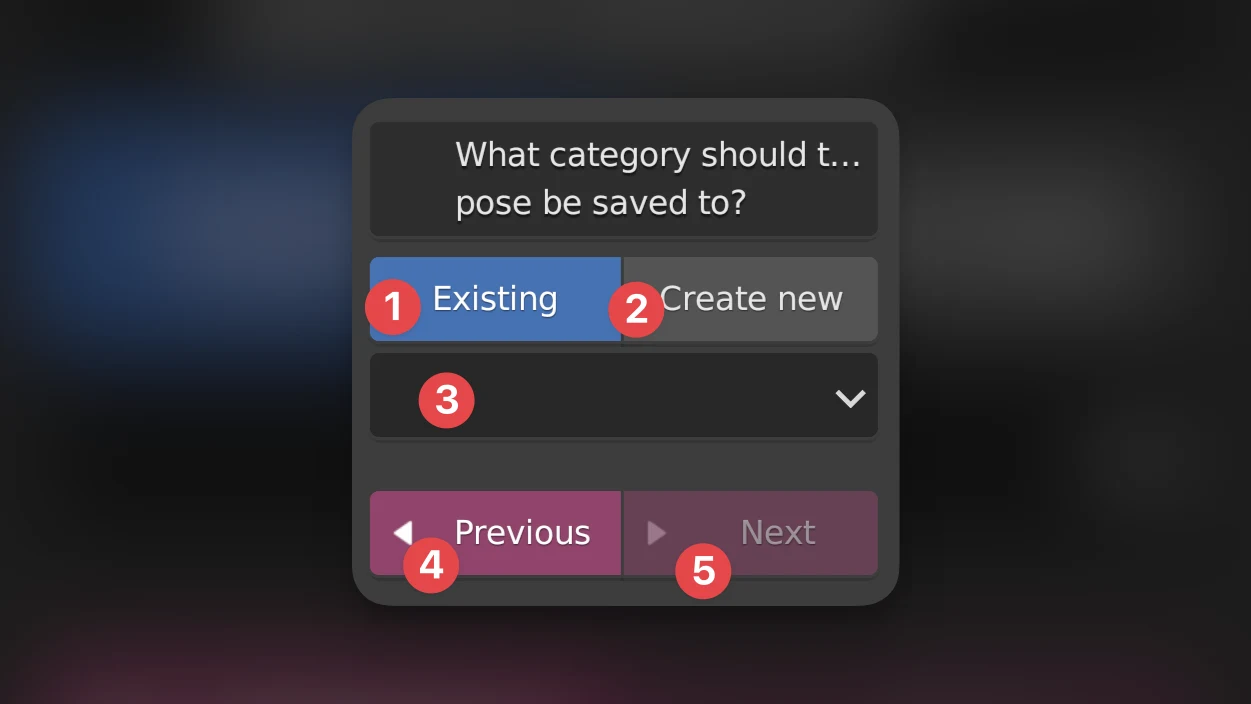
### 7) Category selection
Hairstyles are sorted into categories. Here you'll choose a category to save your pose in.
You can choose an existing category in the "Existing" tab (1) by selecting a category from the dropdown (3). Want a category with a custom name? Go to the "Create new" tab (2) and fill in your own name.
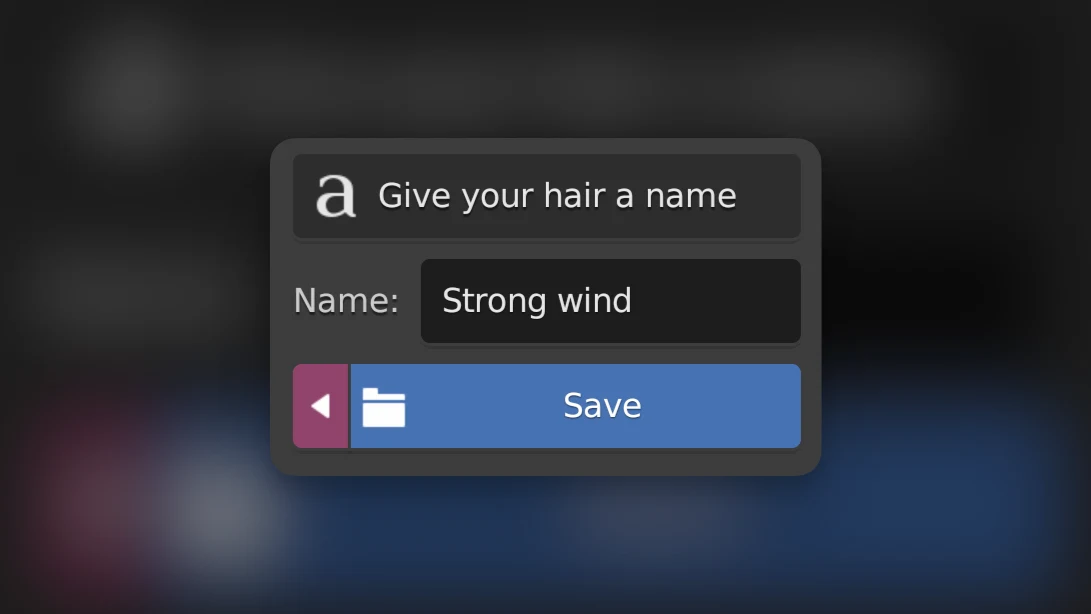
### 8) Give the hairstyle a name
This is what will show up in the menu and will be the filename. Then press **Save**.
>**Saving time**
>It is normal that Blender freezes for some time while saving a hairstyle. It is a heavy operation.
### 9) The hairstyle is now saved!
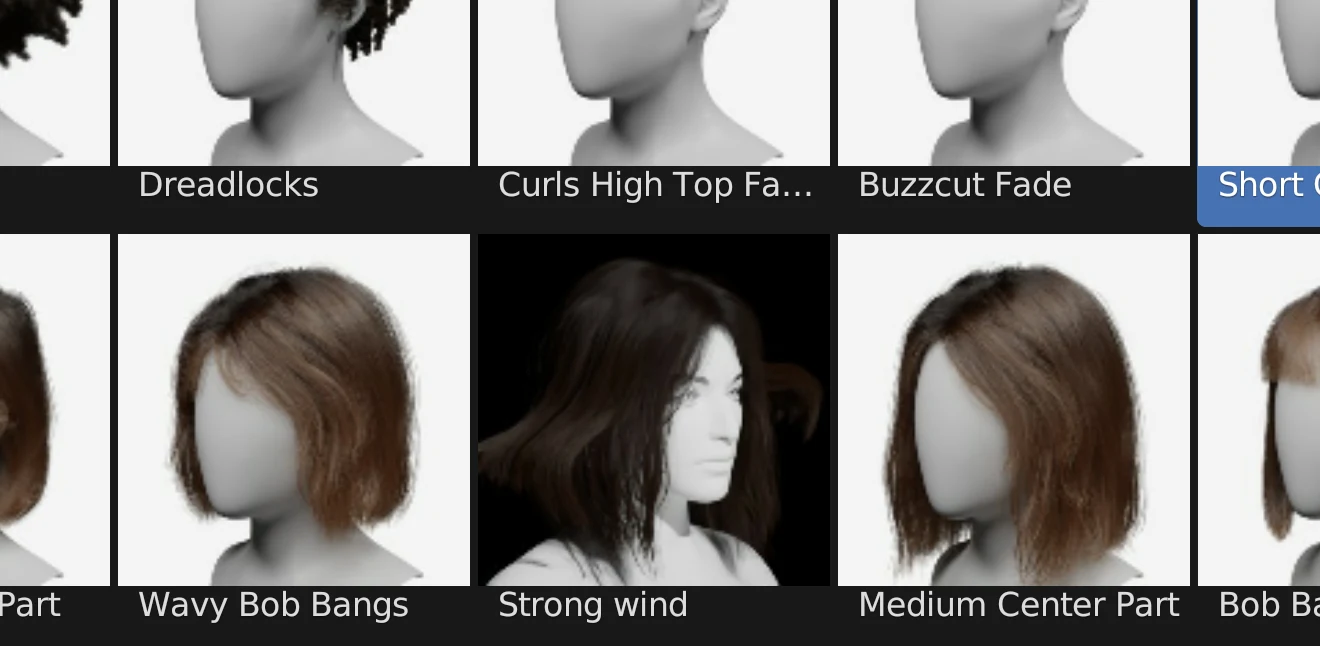
You can find it in the hair selector. Want to share it with others? See [Exporting your content as a pack](https://humgen3d.com/docs/custom-content/exporting-your-content-as-a-pack).
---
>**Technical info**
>Hairstyles are saved as `.blend` files in the `{hg folder}/hair/{hair type}/` folder. Besides that, there are `.json` files per gender in `{hg folder}/hair/{hair type}/{gender}` with an accompanying `.jpg` thumbnail of the exact same name. The json defines what `.blend` file to load, which styles from that file, and what settings to put.